
Activating a new mobile plan can feel overwhelming, especially with all the technical jargon like SIM cards, eSIMs, and activation codes thrown your way. But in reality, activating a phone with any carrier, including Spectrum Mobile, is quick and easy, and takes between 10 to 15 minutes.
Getting your Spectrum Mobile phone up and running takes just two main steps:
- Activate your Spectrum Mobile SIM card or eSIM on your device.
- Activate your Spectrum phone plan through your user account via the Spectrum App or website.
Our Spectrum phone setup guide will walk you through the process. Get your account information ready, have your phone handy, and make sure you have internet access to begin activation.
Not a Spectrum Internet customer?
Spectrum Mobile is only available to Spectrum Internet customers. If you're not a Spectrum Internet customer or Spectrum Internet isn't available in your area, check out our picks for the best Verizon MVNOs if you're looking for a similar network without the bundling requirement.
What to know before activating your Spectrum Mobile phone
To make your Spectrum activation process as smooth as possible, you’ll need to complete these pre-activation requirements:
- Create a Spectrum mobile username before you begin. In order to access your activation dashboard, you need to create a username. You can do so through the My Spectrum App or on Spectrum’s website.
Image: Spectrum Mobile - Gather your account information. Make sure you have your Spectrum account info, PIN, and billing address. You’ll also need your previous phone carrier account information if you’re switching and want to keep your old number.
With these steps prepped you can proceed to activate your Spectrum Mobile phone. Make sure you have all the necessary information and materials ready to go, including your:
- Cell phone
- Spectrum Mobile SIM card or eSIM number
- Account details, including your username, address, phone number, and previous carrier account information (if transferring your phone number to Spectrum)
You can always contact Spectrum customer service during activation if something goes wrong or troubleshoot on Spectrum’s website.
Switching to Spectrum? What to do when bringing your own phone
If you’re bringing your own device to Spectrum’s network (as opposed to activating a new phone), make sure you do the following before you start the activation process:
- Back up your device so you don’t lose all of your contacts and other information, and make sure your software is up to date.
- Unlock your phone. Look up your phone’s IMEI at Spectrum’s eligibility checker to see whether your phone is already unlocked. If not, you’ll need a transfer PIN from your current carrier if you want to use your own phone with your new Spectrum plan. For access to specific carrier unlock guides, hop over to our breakdown of how to unlock your phone.
How to activate your Spectrum Mobile phone
To activate your new Spectrum Mobile phone, you’ll first activate your SIM or eSIM, and then you’ll activate your phone plan.
To set up your Spectrum SIM card or eSIM, follow these steps:
- Turn off your phone.
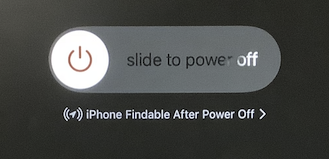
Image: Jessica Santero - Open your Spectrum Mobile package, including your new phone (if you bought one) and new SIM card.
- If you have an iPhone, get your Apple ID ready because you’ll need it to complete activation. If you have an Android device, get your Gmail information prepared.
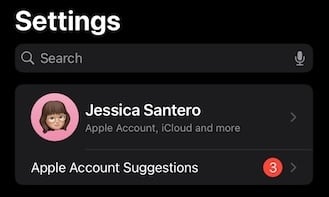
Image: Jessica Santero - If you have a:
- Physical SIM card: Insert the Spectrum Mobile SIM into your phone. If you bought an Android directly from Spectrum Mobile, it might have been shipped with the SIM already inserted, but check just in case.
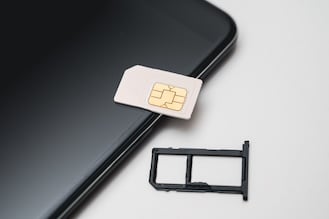
Image: Jessica Santero - eSIM: Either scan the eSIM QR code or manually enter your eSIM number under your phone’s network or cellular settings in your Settings app. (Spectrum offers device-specific instructions if you run into trouble.)
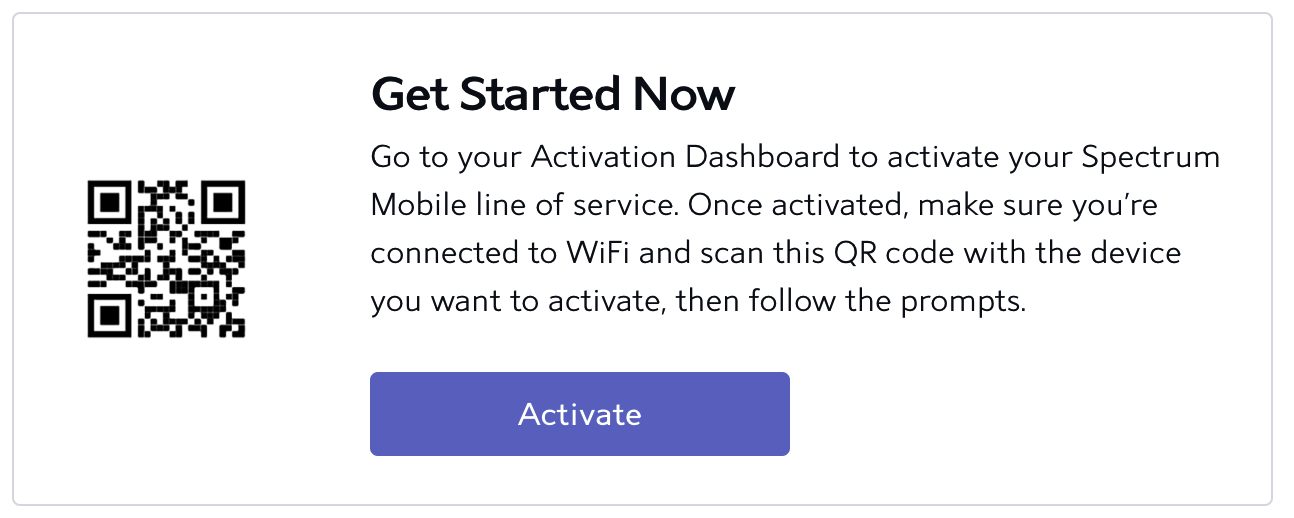
Image: Spectrum Mobile
- Physical SIM card: Insert the Spectrum Mobile SIM into your phone. If you bought an Android directly from Spectrum Mobile, it might have been shipped with the SIM already inserted, but check just in case.
At this point, if you’ve purchased a new phone through Spectrum Mobile, you’ll need to set up your device.
If you’ve already done so, or you’re bringing your existing phone to Spectrum Mobile, you can move on to activating your Spectrum phone plan through the following process:
- Sign in to your Spectrum account, either via the My Spectrum App or in your account dashboard.
- On the Activation Dashboard, click or tap Activate.
- If you're transferring your old phone number, enter your account details and transfer PIN from your previous carrier.
- Select Start Activation and follow the steps.
- Check your confirmation email when your device has been successfully activated.
- Restart your phone and test your service. Call or text a contact to see if you’re connected to your new network.
How to activate a Spectrum Mobile eSIM
If your phone is eSIM compatible, you won’t need to fumble with removing and inserting tiny SIM cards. Spectrum supports eSIM use for any iPhone 12 or newer, or the Samsung S24 series or newer.
The Spectrum Mobile eSIM activation process will differ depending on whether you’re activating a new iPhone or Android device, and will vary slightly according to your phone’s generation. Make sure your device is connected to Wi-Fi before you start.
To activate a Spectrum eSIM on an iPhone:
- Open your Spectrum App or your online dashboard.
- Either:
- Scan the eSIM activation QR code; or
- Manually enter your eSIM number in your phone’s Settings
- Depending on your iPhone model, you’ll find this under Cellular > Mobile Data > Add Cellular Plan, or under Mobile Service > Add eSIM
To activate your Spectrum eSIM on an Android:
- Open your Spectrum App or your online dashboard.
- Either:
- Scan the eSIM activation QR code; or
- Manually enter your eSIM number in your phone’s Settings
- Depending on your Android device, you’ll find this under Network & internet > SIMs > Set up an eSIM, or under SIM Preferences > eSIM
How to activate a Spectrum Mobile phone using the app
The My Spectrum app is a super easy way to get your device running on Spectrum’s network. Before you start, make sure you’re connected to Wi-Fi and you’ve downloaded the app to your phone.
Once you’re ready, follow these steps to activate your Spectrum phone plan through the My Spectrum app:
- Open the app and sign in using your account information.
- Tap Start Activation.
- Insert your Spectrum SIM card or follow the prompts to activate your eSIM.
- Once activation is complete, restart your phone.
What to do if your Spectrum Mobile activation fails
Sometimes activation doesn’t always go as planned. You may face issues like slow activation in general, lack of network connectivity, and SIM card recognition issues. Luckily, every problem has a solution.
Your activation is taking too long
Slow activation is usually just a temporary issue. If you’ve been trying to activate your Spectrum Mobile phone for more than 20 minutes, consider these steps:
- Check your device compatibility. If you’re bringing your phone when switching to Spectrum, make sure it’s unlocked and compatible with Spectrum Mobile. You can check whether your phone is unlocked through the My Spectrum App or on Spectrum’s website under your activation dashboard.
- Update your phone. Update your device to the latest iOS or Android software version before re-inserting the SIM card.
- Reinstall your SIM card. Eject your SIM card and make sure it is installed properly. If you have an eSIM, you can look under your phone’s mobile network settings to check for correct installation.
Your phone doesn’t recognize your Spectrum SIM card
If your phone is having trouble recognizing your Spectrum Mobile SIM card, make sure you have deactivated all other previous eSIMs under your phone’s settings and try reinserting your SIM card. If your phone still doesn’t recognize your SIM card, reach out to Spectrum’s customer service line for more help.
Spectrum Mobile currently supports eSIM on iPhone 12 and newer and the Samsung Galaxy S24 series or newer. If you're not on a compatible device yet, here are the eSIM-ready iPhones available directly from Spectrum Mobile:
iPhone 17e 256GB
- 6.1 inch display
- Rear Camera: 48MP
- Front Camera: 12MP
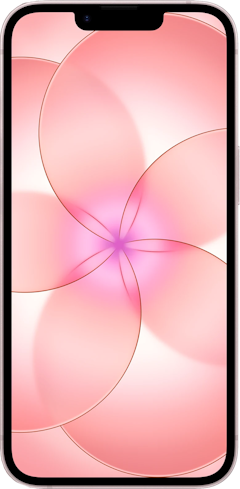
iPhone 16 128GB
- 6.1 inch display
- Rear Cameras: 48MP, 12MP
- Front Camera: 12MP
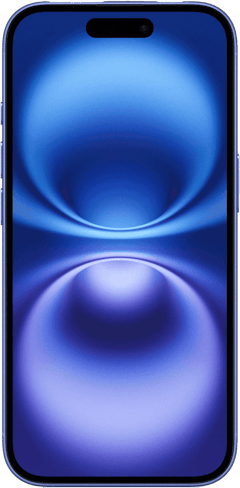
iPhone 16 Plus 128GB
- 6.7 inch display
- Rear Cameras: 48MP, 12MP
- Front Camera: 12MP
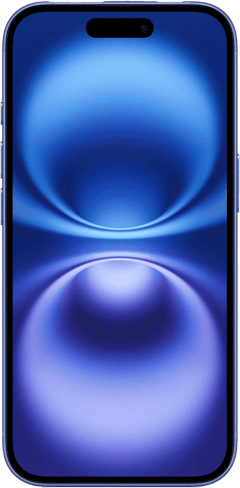
iPhone 17 256GB
- 6.3 inch display
- Rear Cameras: 48MP, 48MP
- Front Camera: 18MP
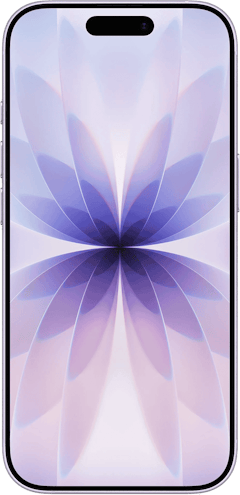
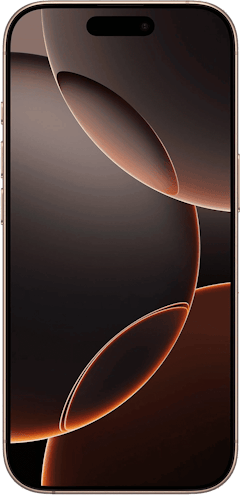
iPhone 16 Pro 256GB
- 6.3 inch display
- Rear Cameras: 48MP, 48MP, 12MP
- Front Camera: 12MP

Your Spectrum network isn’t available
If your phone isn’t connecting to the Spectrum network, try restarting your device. If that doesn’t work, make sure your phone is updated and installed with the latest software version. Also ensure Airplane Mode is turned off so your phone can connect to Spectrum’s network. If you’re still having trouble connecting to Spectrum’s network, you’ll likely need to contact customer support.The best Spectrum Mobile plans
Spectrum Mobile is Verizon MVNO, which means you get the reliability of Verizon’s network without the premium cost. In fact, Spectrum Mobile has some budget-friendly plans with unlimited talk and text plus generous premium data, along with Wi-Fi hotspots nationwide. If you’re still deciding which Spectrum plan to choose, here’s a quick breakdown.
You can choose between two unlimited data plans or opt for a light-data option to save even more on your phone bill:
- For $40/month, the top-tier Unlimited Plus Data plan gets you 50GB of premium data and a 10GB premium hotspot; a great option if you often tether your devices or do heavy streaming from your phone.
- For $30/month, we recommend Spectrum’s Unlimited Data plan for most average phone users. You get a healthy 30GB of premium data, where most Americans only use around 12GB/month.
- Starting at $20/month, the By the Gig option lets you pay for only the data you actually use. It includes 1GB of premium data with the option to buy more for an additional $5/GB. (Just keep in mind that if you purchase 2GB more, you might want to consider upgrading and switching to the $30 Unlimited plan.)
|
#1
|
Spectrum Mobile

By the Gig
$20.00/mo
+ $20 Upfront
|
|
#2
|
Spectrum Mobile
Unlimited Data
$30.00/mo
+ $20 Upfront
|
|
#3
|
Spectrum Mobile
Unlimited Plus Data
$40.00/mo
+ $20 Upfront
|
|
#4
|
Spectrum Mobile
Unlimited Plus Premium Data
$50.00/mo
+ $20 Upfront
|
One condition to note: To snag a Spectrum Mobile plan, you must first be a Spectrum internet customer.Bundling your phone and internet plans is an excellent option to help you save on your overall monthly costs. Check out our review of Spectrum’s internet for all the details.
Jessica Santero
Staff Writer

Find a better phone plan
Thousands of cell phone plans unpacked. All the facts. No surprises.


.png?w=280&h=280&usm=20&usmrad=0.8&fit=crop "Best Cell Phone Deals for July 2026: Get the New iPhone 17 for Free")



