
Apple frequently updates iOS to introduce new features, fix bugs, and strengthen your data security. Massive updates like iOS 26 or iOS 27 can completely change your device, while smaller updates may provide background quality-of-life improvements. Updating your iOS to the latest version secures your device against new threats and provides the best experience with Apple's products.
You can easily update your iPhone to the latest iOS within the settings of your device. Read on to learn how to update your iPhone and the most common reasons your iOS update may fail.
Before you update your iPhone
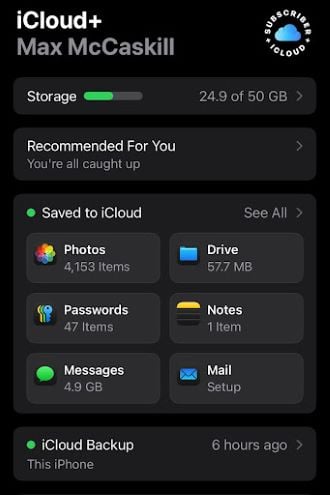
Image: Max McCaskill
iOS updates are typically easy and painless. To ensure they are downloaded and installed properly, you should complete the following tasks before you begin the update process:
- Back up your iPhone: Sync your device with iCloud Backup or a computer to ensure your data can be recovered if the update fails.
- Ensure sufficient battery charge: Most iOS updates require at least an 80% charge, and you should leave the iPhone plugged in for the entire update process.
- Connect to a stable Wi-Fi network: Your iPhone will need to download the iOS update from Apple’s servers.
- Check your storage space: All iOS updates will require a specific amount of free storage space on your device.
- Choose the right installation time: Major iOS updates may take up to an hour to download and install, so try to complete them when you won’t need your iPhone.
What is the latest version of iOS?
You should always update your iPhone to the latest version of iOS.
iOS 27 is the latest version of iOS. It offers new features like Siri AI, updated parental controls, and AI integration into some of Apple's most popular native apps.
Learn more about iOS 27 in our guides:
How to update iOS on your iPhone manually
After you’ve completed the steps above, you’re now ready to update your iOS. You’ll typically get an alert when a new iOS update is released by Apple. You may also see a notification icon on the Settings app.
To manually update the iOS on your iPhone:
- Go to the Settings app
- Open General.
- Tap Software Update.
- If no update is showing, check for new iOS updates by pulling down on the top of your screen to refresh.
- Tap Update Now.
- Follow the instructions and leave your iPhone plugged in until the update is complete.
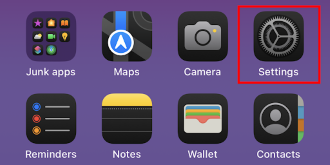
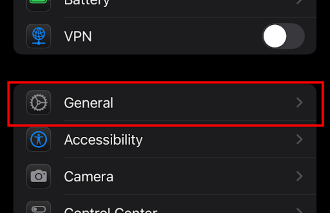
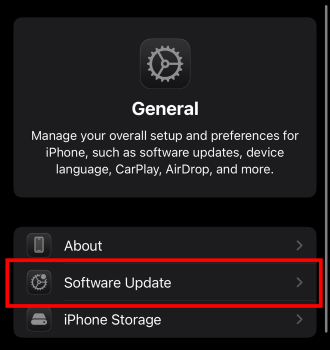
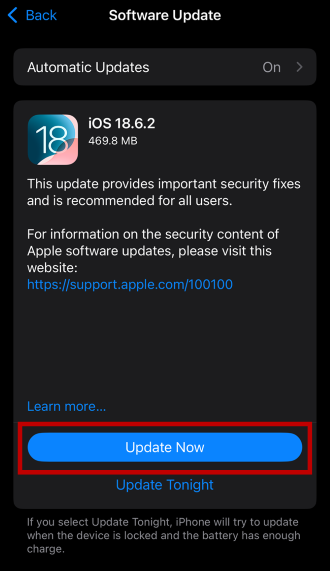
During the iOS update, your iPhone’s screen will turn black and show the Apple logo. A progress bar will appear, and your device may restart several times. Minor iOS updates may only take a few minutes, while a major update—like going from iOS 18 to iOS 26—may take up to an hour, depending on factors like the phone’s age and Wi-Fi download speeds.
How to turn on automatic iOS updates
If you can’t remember to frequently check for iOS updates, enabling automatic updates will do the job for you.
To enable automatic iOS updates:
- Go to the Settings app.
- Open General.
- Tap Software Update.
- Tap Automatic Updates.
- Enable iOS Updates.
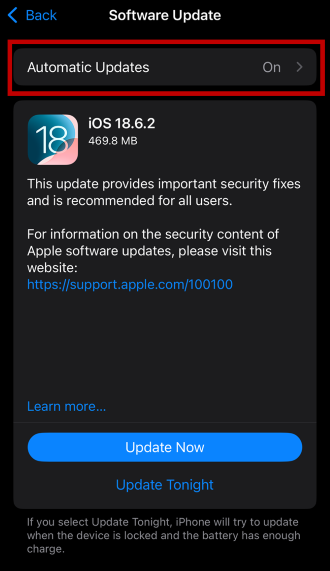
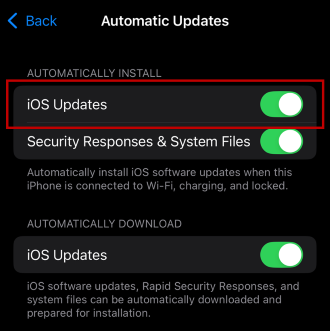
Note that automatic updates may take a few days to begin. Your iPhone will only complete the update if certain conditions are met. Typically, the device will need to be plugged in with sufficient charge, locked, and connected to Wi-Fi.
iOS not updating? How to troubleshoot
While iOS updates are typically simple, they can sometimes fail. Here are some of the most common reasons and what you can do to fix them.
Insufficient storage space
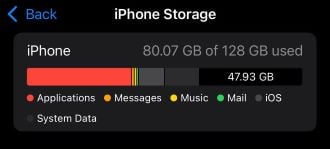
Image: Max McCaskill
iOS updates require an allotment of free storage to download and install. If your storage is full of pictures, apps, and messages, you likely have no room for the iOS update.
- Offloading your data to iCloud.
- Deleting unused apps.
- Clearing your cached data.
- Deleting unwanted photos, videos, files, and voice notes.
- Deleting downloaded songs from apps like Spotify, Apple Music, or Amazon Music.
Unstable network connections
iOS updates require a strong and stable internet connection. Make sure to use Wi-Fi instead of your mobile data when downloading an iOS update.
Low battery status
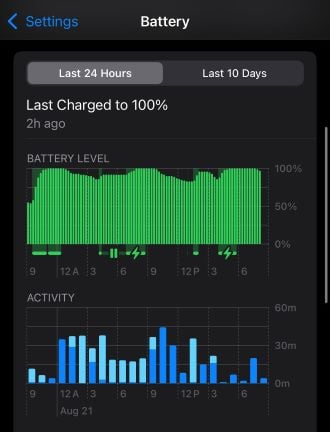
Image: Max McCaskill
If your battery is too low, your iPhone will not complete the update even if the device is plugged in. Aim to have at least a 50% charge before beginning the iOS update process.
Apple server issues
When the newest iOS versions are released, Apple’s servers can be swamped, meaning your device can’t access the new update. Check on the status of Apple’s servers to know if this issue is impacting your device.
Incompatible device
iPhones do have an expiration date. When new iOS versions are released, they can be too powerful for older devices to run. iOS 27 is limited to the iPhone 11 series and newer. If you have an iPhone X series or earlier device, you can’t update your iPhone anymore. It’s now susceptible to data security issues, and you should upgrade your iPhone.
Here are some of the most popular iPhones compatible with the newest iOS:
iPhone 17e 256GB
- 6.1 inch display
- Rear Camera: 48MP
- Front Camera: 12MP
iPhone 16 128GB
- 6.1 inch display
- Rear Cameras: 48MP, 12MP
- Front Camera: 12MP
iPhone 17e 512GB
- 6.1 inch display
- Rear Camera: 48MP
- Front Camera: 12MP
iPhone 17 256GB
- 6.3 inch display
- Rear Cameras: 48MP, 48MP
- Front Camera: 18MP
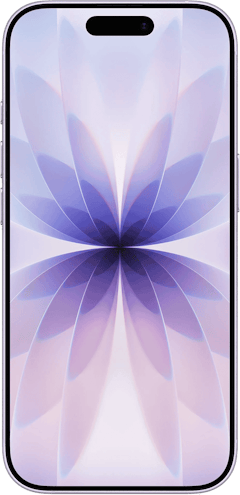
iPhone Air 256GB
- 6.5 inch display
- Rear Camera: 48MP
- Front Camera: 18MP


Updating iOS: FAQ
Why is my iPhone not showing the latest update?
If the iOS update is not showing, your iPhone may not be compatible with the update, or there may be issues with Apple's servers. Additionally, if you've already downloaded the latest update, the Software Update screen in the Settings app will be empty.
Can I update my iPhone without Wi-Fi?
Yes, you can update your iPhone without Wi-Fi if you use your mobile data plan. That said, we don't recommend doing this unless you have a top unlimited plan with a large allotment of premium data. Otherwise, you could use all your high-speed data on downloading updates and suffer from slower speeds for the rest of your billing cycle.
Will updating iOS delete anything?
No, updating iOS will not delete any of your files or data. That said, we still recommend backing up your phone in case the update fails and you have to reset your device.
How long does it take to update an iPhone?
The amount of time it takes to update an iPhone depends on the size of the update and your internet connection speed. Small updates with fast download speeds may only take a few minutes. Larger, multi-gigabyte iOS updates or slow internet connections may take up to an hour or more.
Max McCaskill
Sr. Staff Writer

Find a better phone plan
Thousands of cell phone plans unpacked. All the facts. No surprises.


.png?w=280&h=280&usm=20&usmrad=0.8&fit=crop "Best Cell Phone Deals for July 2026: Get the New iPhone 17 for Free")



