Your iPhone is set to automatically download and install iOS updates and app updates in the background, and most users should not adjust that setting. Automatic updates are the simplest way to keep your device secure without having to think about it.
That said, there are legitimate reasons to turn them off, such as:
- A new update has introduced bugs you'd rather avoid until Apple patches them.
- You have an older iPhone and want to research performance impacts before committing.
- You prefer to stay in control of when major iOS redesigns change how your phone looks and works.
We'll cover the pros and cons of automatic updates, how to turn them off, and how to update iOS manually on your own schedule.
What are automatic iPhone updates?
Automatic updates are a setting that lets your iPhone download and install the latest iOS updates or app software on its own. When enabled, your iPhone checks Apple's servers for updates regularly. If one is available, your iPhone downloads and installs it in the background, typically overnight while plugged in and connected to Wi-Fi.
There are two separate automatic update settings to be aware of and both are enabled by default:
- iOS updates: Controls automatic downloading and installation of system software updates, including both major releases like iOS 27 and smaller patches.
- App updates: Controls whether apps downloaded from the App Store update automatically.
Pros & cons of automatic iPhone updates
Pros:
- Security patches install without you having to remember
- Zero effort: updates happen overnight while you sleep
- Bug fixes and performance improvements stay current
- Access to new features as soon as they're available
Cons:
- New updates can occasionally introduce bugs
- Major iOS overhauls can change how your phone looks and feels
- Can cause temporary slowdowns on older iPhones
- Once installed, you generally can't go back to the previous version
Why should I turn iPhone automatic updates on?
Security is the most important reason to keep automatic updates on. Apple regularly releases patches to address vulnerabilities that hackers can exploit, and the longer your phone goes without those patches, the more exposed you are. With automatic updates on, your iPhone stays protected without you having to remember to check.
Beyond security, iOS updates routinely bring performance improvements, bug fixes, and new features. Updates also install overnight with no action required, as long as you have enough space on your device.
For most people, automatic updates are the best choice. If you're not particularly tech-savvy, or you simply don't want to think about it, leave them on.
Why should I turn iPhone automatic updates off?
Some new iOS and app updates can occasionally introduce bugs that weren't there before, like Bluetooth connectivity issues, battery drain, or app instability. While Apple and app developers usually fix these issues within weeks, your phone might be less reliable until you download the next update. If you'd rather let early adopters shake out the bugs first, turning off automatic updates and waiting a few weeks is a reasonable approach.
Major iOS releases can also dramatically change how your phone looks and behaves. If you prefer to stay in control of when you adopt big changes, manual updates give you that option.
Finally, the age of your device is also worth considering, since performance can take a noticeable hit after a major update on older iPhones. If your phone is a few years old and running fine on its current software, it's worth researching how a new iOS version performs on your specific model before installing it.
Overall, if you're comfortable managing updates manually and will actually follow through, turning off automatic updates is a perfectly valid choice. That said, skipping updates indefinitely is not a great idea for security.
How to turn off automatic updates on iPhone
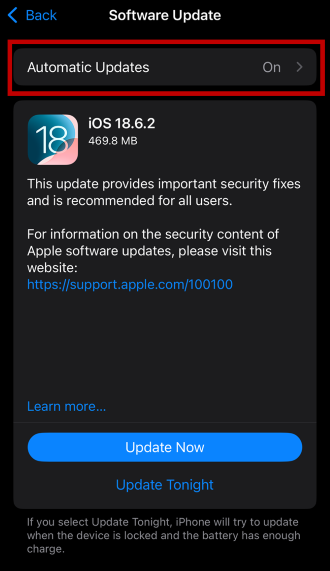
Image: Max McCaskill
Automatic iOS and app updates are enabled by default on new iPhones. If you've decided you want to disabled them, you'll need to turn off automatic updates for iOS and apps separately. Here's how to do both.
How to turn off automatic iOS updates
- Open the Settings app.
- Tap General.
- Tap Software Update.
- Tap Automatic Updates.
- Toggle off Automatically Install.
Disabling Automatic Updates stops your iPhone from pulling the update file in the background.
How to turn off automatic app updates on iPhone
- Open the Settings app.
- Tap Apps.
- Tap App Store.
- Toggle off App Updates.
Once this is off, your apps will no longer update in the background. You can still update them manually by opening the App Store, tapping your profile icon, going to App Updates, and tapping Update All. Learn more in our guide to how to update apps on iPhone.
How to update iOS on iPhone manually
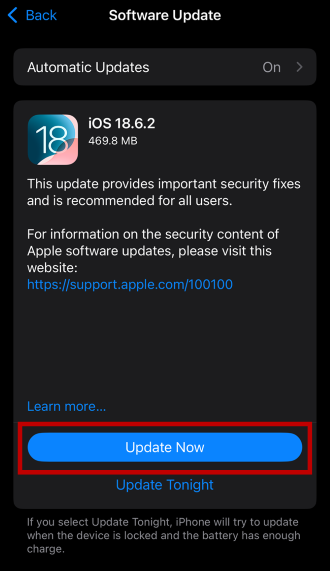
Image: Max McCaskill
If you've turned off automatic updates, here's how to check for and install iOS updates on your own schedule. Before you start:
- Make sure your iPhone has at least 50% battery charge, or keep it plugged in throughout.
- Connect to Wi-Fi.
- Check that you have enough free storage space for the update to download.
- Pick a time when you won't need your phone, as major updates can take up to an hour.
- Open the Settings app.
- Tap General.
- Tap Software Update.
- If an update is available, tap Update Now.
- Follow the on-screen instructions and keep your iPhone plugged in until the update is complete.
During the update, your screen will go dark and show the Apple logo with a progress bar. Your phone may also restart more than once.
Automatic iPhone updates: FAQ
Why should I download iOS updates?
Security updates and bug fixes are the most important reasons to download new iOS updates, but they're not the only ones. iOS releases can also brings new features that improve your experience with your iPhone. For example, iOS 27 included features like Siri AI, new parental controls, and deeper Apple Intelligence integration across the most popular native Apple apps.
Is it okay to turn off automatic updates on iPhone?
Yes, it is okay to turn off automatic updates on iPhone as long as you still complete them manually. The main risk of skipping updates entirely is missing security patches, which can leave your device more vulnerable to hackers. If you turn off automatic updates, set a reminder to check for updates every few weeks.
What happens if you don't update your iPhone?
If you don't update your iPhone will keep working, but over time you'll miss out on security patches, bug fixes, and new features. Apps may also stop supporting older iOS versions, which can cause compatibility issues in the future. Check out our guide to the latest version of iOS to see what new features are available to help you make a decision.
Why is my phone buggy after an update?
New iOS updates can sometimes introduce bugs that affect some devices. Common issues include battery drain, Bluetooth problems, slow app performance, or unexpected crashes. Apple typically releases a follow-up patch within a few weeks to address the most widespread problems.
Can you undo an iOS update on iPhone?
No, in most cases, Apple stops allowing users to download previous iOS versions shortly after a new update is released. This means the older software can no longer be officially installed on your device. There is a very narrow window right after a new update drops where a downgrade may technically be possible, but the process requires a computer, erases all data on your phone, and depends on Apple still offering the older version.
Max McCaskill
Sr. Staff Writer

Find a better phone plan
Thousands of cell phone plans unpacked. All the facts. No surprises.