
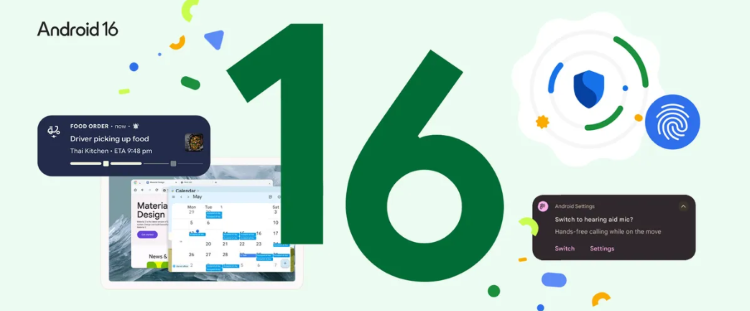
Image: Google.
Android is the operating system of choice for some of the biggest device brands on the market including Samsung, Google, and Motorola. That said, how each phone uses Android can look different, making it difficult to keep track of what version your device is currently running.
The latest Android OS version is Android 16, officially released for Google Pixels on June 10, 2025. Other smartphone brands, like Samsung, Motorola, and OnePlus are slowly getting access to this newest OS. Until Android 16 is officially launched for your device, the most recent Android version available for most devices is Android 15.
We’ve got all the details on Android 16, its top features, and how you can update your phone’s OS. Read on for our full Android guide.
What is Android?
Android is an operating system for smartphones designed by Google. The first version was released in September of 2008 and it has grown to become the most-used smartphone OS on the planet.
Despite being made by Google, Android isn’t limited to Google’s smartphones. Instead, Google allows other companies to use its OS as the bedrock system for their devices. While each company can tweak features and adjust how the phone looks, Android is still the operating system running the show.
Android devices come from some of the largest smartphone manufacturers in the world including:
What is the latest Android version?
The latest Android version is Android 16. It's out now for Google Pixel devices and select Samsung smartphones.
If your device can’t update to Android 16, the most recent version you can use is Android 15.
Are Android updates important?
Yes, Android updates are incredibly important. They keep your data safe and make sure your phone is working properly. It’s always beneficial to update your phone when you have the chance.
Each version of Android also comes with periodic updates. Some might introduce new features while others offer quality-of-life fixes, like pushing a change that makes your Android’s internet work faster. Android security updates are also important because they patch flaws and keep your personal data secure.
Full history of Android OS versions and release dates
Here are Android’s version names and release dates as of Android 16:
Android version and release dates
| Android version | Release date |
|---|---|
| Android 1.0 | September 23, 2008 |
| Android Cupcake | April 27, 2009 |
| Android Donut | September 15, 2009 |
| Android Eclair | October 27, 2009 |
| Android Froyo | May 20, 2010 |
| Android Gingerbread | December 6, 2010 |
| Android Honeycomb | February 22, 2011 |
| Android Ice Cream Sandwich | October 18, 2011 |
| Android Jelly Bean | July 9, 2012 |
| Android KitKat | October 31, 2013 |
| Android Lollipop | November 12, 2014 |
| Android Marshmallow | October 2, 2015 |
| Android Nougat | August 22, 2016 |
| Android Oreo | August 21, 2017 |
| Android Pie | August 6, 2018 |
| Android 10.0 | September 3, 2019 |
| Android 11.0 | September 8, 2020 |
| Android 12.0 | October 4, 2021 |
| Android 13.0 | August 15, 2022 |
| Android 14.0 | October 4, 2023 |
| Android 15.0 | October 15, 2024 |
| Android 16.0 | June 10, 2025 |
Why does Android have a dessert nickname?
During development, Google typically assigns each Android version a dessert or sweet treat codename to keep projects under wraps. For the first several Android releases, Google used this codename instead of a numbering system when naming the new OS.
In 2019, Google announced it would switch to numbers and phase out dessert names for Android naming. This was designed to make the system more accessible worldwide since some previous names were difficult for non-English speakers to pronounce. Google still uses dessert codenames for future Android releases in internal communications. Android 16’s codename was Baklava.
How to check your Android version
Updating your device to the most recent Android version is the best way to keep it running well and access new features.
If you don’t know what your current Android version is, you can find it in the settings of your device. It’s typically found in the “About phone” section near your device model information and IMEI number.
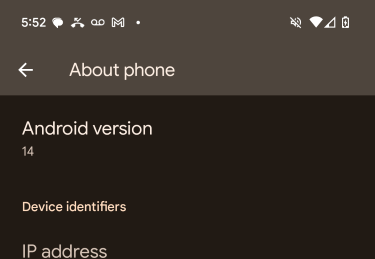
Image: Max McCaskill.
Every manufacturer will have different steps on their device. That said, there is an easy way to check on most Android devices. If your settings app has a search bar, simply search for “Android” and the version number should pop up.
How to update your Android version
If you discover you’re running an older version of Android, you can download Android 16 from your Settings app. Once again, the steps will vary depending on manufacturers and even device models.
For Google Pixels, this is located in your Settings under the Security and Privacy section. As soon as you open the section, your device will automatically check for updates. If one is available, you’ll see it listed under System & updates. Select it to begin the download and installation process.
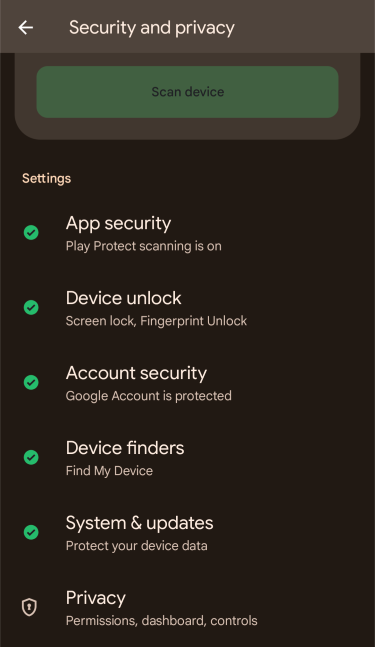
Image: Max McCaskill.
For Samsung devices, this section is located in the Settings app under System updates or Software updates depending on your model.
Android-compatible devices
Android 16 will be compatible with the most recent Android devices, including the new Google Pixel 10 series. It’ll also be included on all Google devices stretching back to the Pixel 6.
Google Pixel 9 128GB

| Description | |
|---|---|
| Screen Size | 6.3" |
| Available On | 106 Plans from 8 carriers |
| Available From |


|
| Priced From | $799.99 upfront |
| View Full Details |
 Google's 2024 model featuring the most advanced Pixel camera and Google AI powered by Tensor G4, with Gemini, 50MP + 48MP dual rear camera system, 6.3" OLED display with 120Hz and Android 14
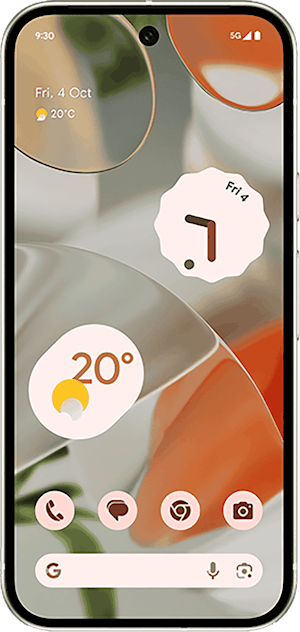
Samsung devices like the Galaxy S25, Z Flip6, and Fold6 will get Android 16 later this year. For now, their most recent operating system is Android 15. It’s not yet clear which older and budget Samsung devices will have access to Android 16.
Top Android 16 features
Each new version of Android comes with new features for your phone. Most of Android 16's biggest changes are features to help increase your productivity.
Usability enhancements
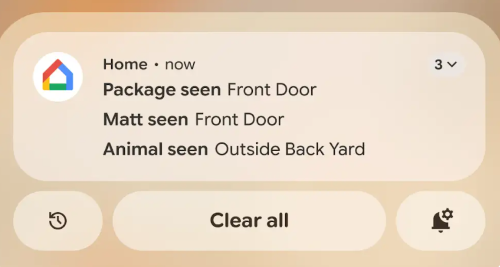
Image: Android.
Android 16 introduced several features to help increase device usability and productivity. These new features include:
- Notification auto-grouping: Groups similar types of notifications together, reducing clutter on your screen.
- Live updates: Track rides or delivery progress in real-time from notifications with compatible apps.
- Predictive back: See a preview of the previous screen before going back in three-button navigation.
- Haptic sliders: Tactile feedback when adjusting a device's volume or brightness.
- Adaptive refresh rate: The screen automatically adjusts when viewing content to create a smoother experience and optimize battery life.
Identity check
A new feature that requires biometrics for sensitive actions when away from your trusted places. "Sensitive actions" can include accessing passkeys and saved passwords, changing your device PIN, or turning off Find My. This is designed to prevent hostile account takeovers.
Notification redactions
When "sensitive" notifications appear on the home screen of a locked device, Android will automatically hide the information until the phone is unlocked. Sensitive information includes things like OTP (one-time password) codes.
Trade-in mode
This is a new mode buried deep in the settings of the device that is designed to speed up the phone trade-in process. When opened, it provides key details about the device's condition, allowing technicians to skip multiple steps when assessing an Android's trade-in value.
Hearing accessibility upgrades
Android 16 allows hearing-impaired people to select between the microphone in their LE audio hearing device and the phone's microphone to help make clearer calls in noisy environments. Additionally, Android smartphones are receiving native control for select hearing devices, meaning users can control things like volume directly on their phone.
Max McCaskill
Sr. Staff Writer

Find a better phone plan
Thousands of cell phone plans unpacked. All the facts. No surprises.


.png?w=280&h=280&usm=20&usmrad=0.8&fit=crop "Best Cell Phone Deals for July 2026: Get the New iPhone 17 for Free")



