

Resetting your Android device can easily solve many different problems, from slow phone performance to data storage issues. You can reset your Android phone by going to Settings > System > Reset options, then choosing the type of reset you need.
Before you reset your phone, it's important to understand the different kinds of resets. A soft reset can fix some smaller problems, but for others, you may need to do a permanent hard reset (also called a factory reset). You'll want to back up your device before going forward with any kind of reset.
Let's go over everything you need to know about resetting your Android phone and the underlying issues that may require a reset.
How do you soft reset your Android phone?
You can soft reset your Android phone by restarting it through the Quick Settings panel or by using the physical buttons on the side of your device. A soft reset essentially just restarts your phone and reestablishes its files.
Here are the steps to reset some of the most popular Android devices.
How to soft reset your Samsung Galaxy
There are two different ways to perform a soft reset on your Samsung phone: from the Quick Settings panel or the manual side buttons on your device.
To reset via the Quick Settings panel:
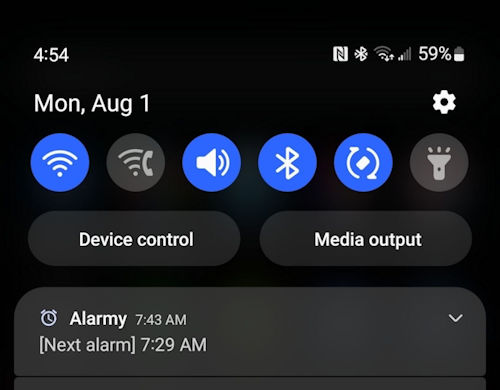
- Swipe down from the top of your phone's screen. This will show your notifications and partially open the Quick Settings panel at the top of the screen.
- Swipe down a second time. This fully opens the Quick Settings panel to reveal more options that change the settings of your phone.
- Press the Power button symbol on the top right corner of the menu. This opens the Power menu.
- Press Restart on the Power menu. This will restart your phone and complete a soft reset.
The second way to soft reset your Samsung Galaxy is by manually using the buttons on the side of the phone. This is the best option to use if your phone is frozen or you cannot get into the Quick Settings.
On Galaxy Note10 models and newer:

- Press the side key and Volume Down button at the same time. This will bring up the Power menu.
- Select Restart.
If your phone is frozen and you cannot bring up the power menu:
- Press and hold the side key and Volume Down button until the phone shuts off.
- Press the side key to turn the phone back on.
On Galaxy S10 and older models:
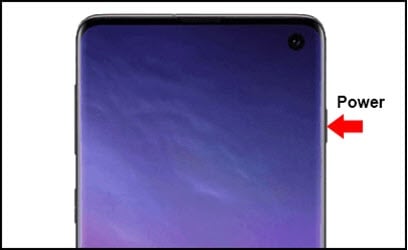
- Press the Power key on the right side of the phone. This opens the Power menu.
- Select Restart.
If your phone is frozen and nothing is on the screen:
- Press and hold the Power key. After a few seconds, the device will turn off.
- Turn the phone back on by pressing the Power key again.
Do you miss your power button?
Do you have a newer model Samsung phone and miss having a dedicated power button? You can fix that! Android devices are all about customization, and Samsung lets you remap the side key to bring up the Power Menu instead of waking Bixby.
- Go to Settings on your phone.
- Select Advanced Features.
- Select the side key.
- Under the Press and hold section, choose the Power Off menu option.
Now, whenever you press and hold the side key, the power menu will come up instead of Bixby. Also check out the other customization options for the side key, like double-pressing it to open your camera, Bixby, or an app of your choice.
How to soft reset your Google Pixel
Google Pixels have two different ways to restart the phone and perform a soft reset. Older Pixel models (Pixel 5a and earlier) use a dedicated physical power button, but newer models (Pixel 6 and later) use a combination of the Power button and Volume Up key. Both models also support restarting through the Quick Settings panel.
The first method is by selecting the power options located in the Quick Settings. To soft reset your phone using Quick Settings:
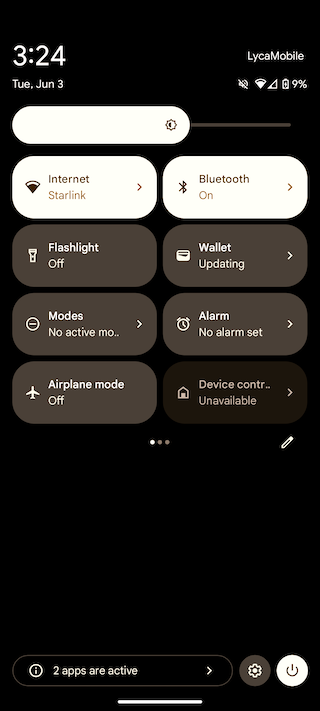
- Swipe down from the top of your phone screen. This will open your notifications and partially open your Quick Settings.
- Swipe down in the Quick Settings area at the top of your screen. This will fully open the quick settings.
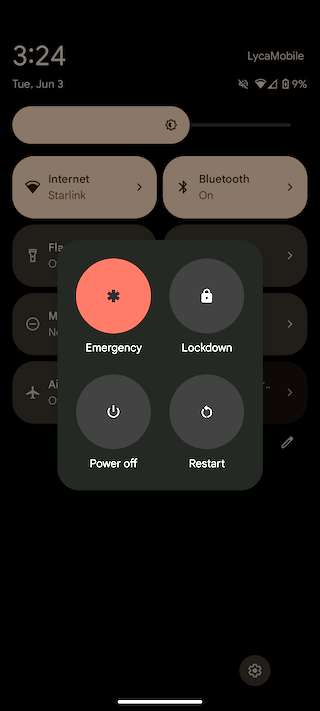
- Locate and press the Power symbol in these settings. This will pull up the power menu of your phone.
- Select Restart. This will restart your device and complete the soft reset.

The second method to soft reset your Pixel is by manually using the buttons on the side of the phone. This is a great option when your phone is frozen. How you complete this method depends on your model.
If you have a Pixel 6 model or newer:

- Press and hold the Power button and Volume Up key at the same time. This will open the power menu.
- Select Restart. This will restart and soft reset your device.
If your phone is frozen or you cannot get to the power menu:
- Hold down the Power button and Volume Up button until the phone turns off.
- Press the Power button again to restart the phone.
If your phone is a Pixel 5a or earlier, it has a dedicated power button. To use it for a soft reset:
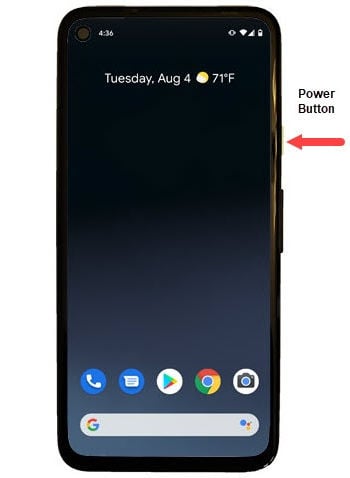
- Press and hold the Power button until the power menu appears.
- Select Restart. The phone will restart and soft reset your device.
If your phone is frozen or the power menu is not appearing:
- Hold down the Power button until the phone turns off.
- Press the Power button again to restart the device.
How do you hard reset your Android phone?
To hard reset your Android phone, go to Settings, navigate to your reset options, and select Factory Data Reset. This will completely wipe everything off your Android device and is irreversible. This option is also known as a factory reset and it can be helpful in a few different situations.
If your phone has become corrupted and no other troubleshooting steps have worked, this might be the last option you have to save your device. It's also a great idea to hard reset your phone when you are ready to get rid of it.
There is no standard combination of Android device factory reset buttons. Instead, you have to go deep into your phone settings. If you can't access your settings because your phone is locked or really malfunctioning, check out the FAQ section below for help.
Try resetting specific Android settings first
To reset your phone's basic network, app, or other settings without wiping all your data, try performing individual resets first in the Reset menu.
- Go to Settings > System.
- Tap Reset Options.
- Select the specific settings you want to reset.
Hard reset your Samsung Galaxy
Performing a hard reset on your Samsung Galaxy device is not difficult, but it can be hard to find, as the option is located deep within your settings. Here's how to hard reset your Samsung phone:
- Go to Settings.
- Go to General Management.
- Tap Reset.
- Tap Factory Data Reset. This will show all the apps and data that will be wiped from the phone. Take a moment to review them and make sure you have backed up everything that is important to you.
- Tap Reset. If you have security protection on your device, a prompt will come up asking for your credentials.
- Tap Erase All.
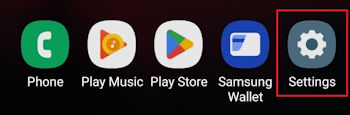
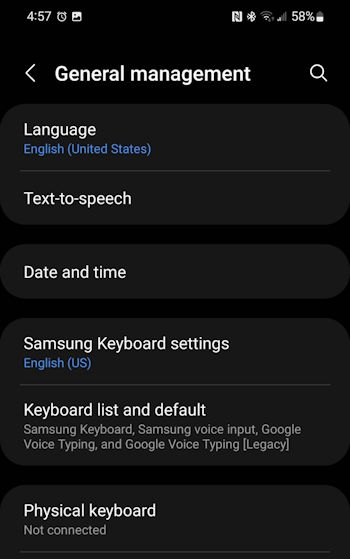
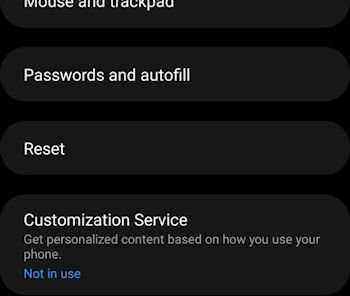
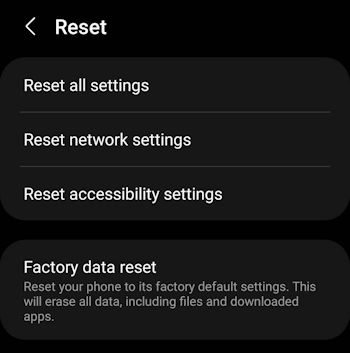
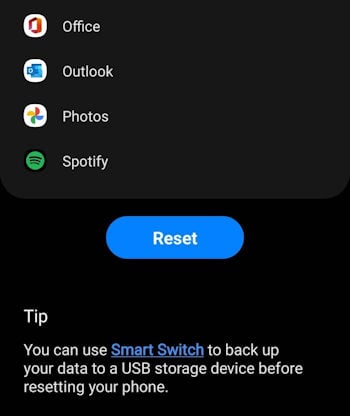
The phone will shut down and begin the factory reset process. This may take some time, depending on the amount of data stored on the device. You'll know the process is complete when the phone restarts.
Hard reset your Google Pixel
To perform a hard reset on your Pixel:
- Go to Settings.
- Tap System.
- Tap Reset options.
- Tap Erase all data (factory reset).
- Tap Erase all data.
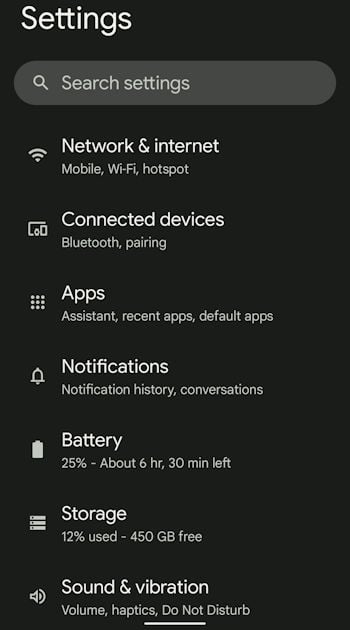
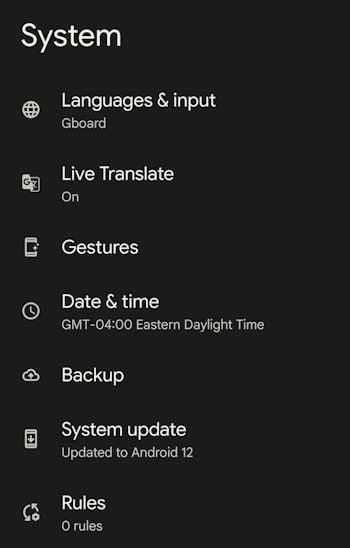
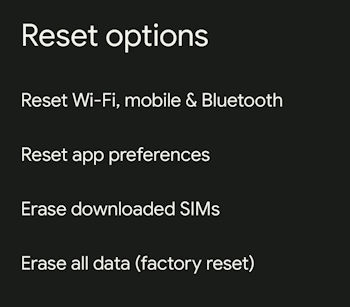
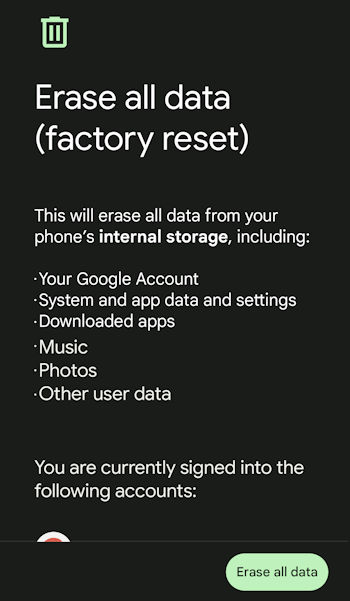
If your phone is protected by a PIN, you will be required to enter it during this step. After you enter your PIN, the phone will begin the reset. This process may take some time, depending on how much data you have on your phone. You'll know it's complete when your phone restarts.
How to hard reset your Android when it won't turn on
Sometimes your Android device is so corrupted that you cannot even get it to turn on. When this happens, you can attempt to start your device in Safe Mode or Recovery Mode and hard reset it from there.
- With your device turned off, press the Power button.
- When your phone turns on and the animation begins, press and hold the Volume Down button. You'll know you've done the process correctly when the device says "Safe Mode" at the bottom.
- Use the Volume Up and Volume Down buttons to navigate the options and the power button to select. Find the option that says Factory Reset and select it.
Android phone problems: soft resets, hard resets, and when to upgrade
If something isn't working right, a reset is usually the first place to start. It's age-old wisdom: When something isn't working, try unplugging it and plugging it back in. Resetting your Android can help correct errors, update software, reset your network connection, and clear out old files.
There are two reset options, and which one you need depends on what you're dealing with:
- Soft resets, for minor or temporary issues.
- Hard resets, for more complex issues that require completely bringing your phone back to square one.
Soft resets vs. hard resets
A soft reset reboots your Android device and reestablishes its files without clearing out your data. This is a great troubleshooting step if your phone freezes or otherwise acts strangely, and it is often all your phone needs to start working like new again.
You can also perform a version of a soft reset that keeps most of your files but resets certain device settings, such as app preferences.
Reasons to perform a soft reset of your Android phone include:
- Your cellular data is going slow or not working at all.
- Calls and texts are not going through.
- Your operating system is slow.
- You want the latest software update.
- You want to reset specific app or network settings.
- An app is repeatedly malfunctioning.
A hard reset, on the other hand, permanently clears your data and brings your Android back to its factory settings. That means all of your data will be deleted from the device, and the phone will be like it was when you originally purchased it. This is a drastic step, but it may save your device if it is completely corrupted.
It is also an important step to take if you are ready to trade in, sell, or donate the phone, so you don't have to worry about others getting your data.
For troubleshooting purposes, always try a soft reset first before a hard reset. Factory resets are permanent and should be considered a last resort.
Consider performing a hard reset of your Android phone if:
- You think you have a virus or malware.
- You're selling or donating your phone.
- The phone frequently crashes or freezes.
- Your phone is running slowly due to accumulated junk files.
- You want a clean slate and are ready to part with your old apps and photos.
Before you reset: Back up your phone
Make sure to back up your device before attempting either type of reset, but particularly before factory-resetting your Android. Hard resets completely wipe your device back to its original settings, and nothing you leave on the phone will survive.
Backing up your phone to a computer or a cloud storage system ensures that your data is safe and retrievable. This is a smart move even before a soft reset. Software issues are rare, but they do happen.
If you've worked through both a soft reset and a hard reset and your phone still isn't performing the way it should, the problem may run deeper than software.
When should you get a new Android phone?
If you've tried both a soft reset and a hard reset and your phone still isn't working, it's time to move on. There are tons of awesome Android devices on the market right now (remember to recycle your old one!).
The Samsung Galaxy S26 is one of our favorites. It's loaded with a Qualcomm Snapdragon 8 Elite processor, 8K video recording, new Galaxy AI features, 5G capability, and so much more.
Then there's Google, which recently rolled out the Pixel 10 series. These phones have one of the best rear cameras in the industry, are extremely sleek and responsive, and boast all-day battery life. Plus, they tend to be a little cheaper than both Samsung Galaxy phones and Apple iPhones.
Check out the best Samsung deals and Google Pixel deals to score the latest device for cheap, or browse some of the most popular Android phones on the market right now.
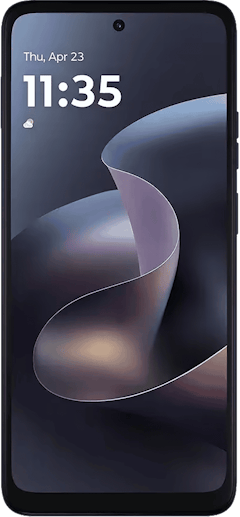
Moto G 5G (2026) 128GB
- 6.7 inch display
- Rear Cameras: 50MP, 2MP
- Front Camera: 32MP
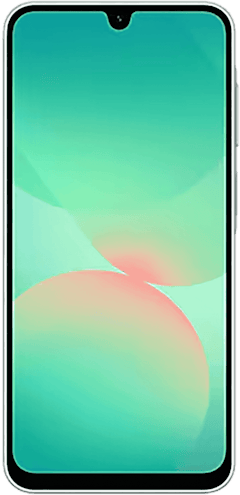
Galaxy A26 5G
- 6.7 inch display
- Rear Cameras: 50MP, 8MP, 2MP
- Front Camera: 13MP
Galaxy A27 5G 128GB
- 6.7 inch display
- Rear Cameras: 50MP, 5MP, 2MP
- Front Camera: 12MP
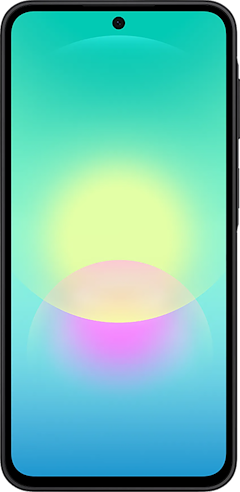
Galaxy A37 5G 128GB
- 6.7 inch display
- Rear Cameras: 50MP, 8MP, 5MP
- Front Camera: 12MP
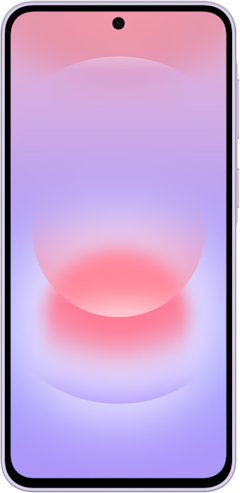
Pixel 10a 128GB
- 6.3 inch display
- Rear Cameras: 48MP, 13MP
- Front Camera: 13MP

Pixel 9a 128GB
- 6.3 inch display
- Rear Cameras: 48MP, 13MP
- Front Camera: 13MP

Edge (2026) 128GB
- 6.3 inch display
- Rear Cameras: 50MP, 50MP, 10MP
- Front Camera: 50MP

Moto G Stylus 5G (2026) 128GB
- 6.7 inch display
- Rear Cameras: 50MP, 13MP
- Front Camera: 32MP
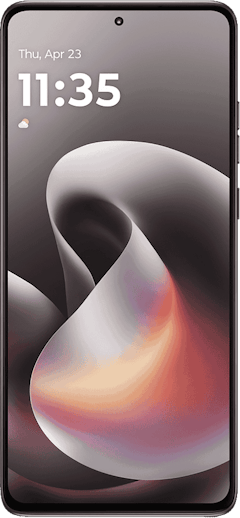
Pixel 10 128GB
- 6.3 inch display
- Rear Cameras: 48MP, 10.8MP, 13MP
- Front Camera: 10.5MP
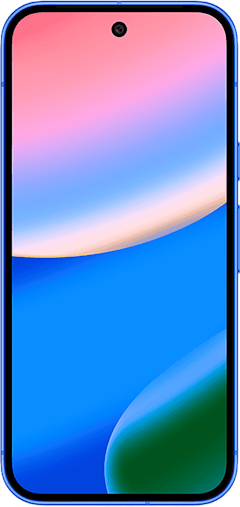
Pixel 10 256GB
- 6.3 inch display
- Rear Cameras: 48MP, 10.8MP, 13MP
- Front Camera: 10.5MP

How to reset your Android phone: FAQ
Does resetting an Android phone delete everything?
A hard reset of an Android phone will delete everything, while a soft reset simply reboots your phone and does not delete any data from your device. Make sure to back up your phone before attempting either type of reset.
How do I factory reset my Android phone without a password?
You can reset your Android phone without a password by putting it into safe mode. While this process varies depending on your phone's manufacturer, it generally involves pressing one or both volume buttons during startup. From there, you can select the factory reset option.
You can also try using Google's Find My Device feature to reset your Android phone when locked or unable to power on.
How can I reset my Android without losing everything?
You can reset your Android without losing everything by backing up your phone before you do the reset. The backup can then be reloaded onto your device after a reset.
What's the difference between a soft reset and a hard reset?
A soft reset is essentially turning your phone off and back on again. This will reestablish the essential files and typically fix most small issues. A hard reset, also known as a factory reset, will completely delete all your data and reset the phone to its factory settings.
Max McCaskill
Sr. Staff Writer

Find a better phone plan
Thousands of cell phone plans unpacked. All the facts. No surprises.


.png?w=280&h=280&usm=20&usmrad=0.8&fit=crop "Best Cell Phone Deals for July 2026: Get the New iPhone 17 for Free")



