
Your choice of fashion may be making life with your iPhone more difficult. Certain kinds of sunglasses can prevent your iPhone's Face ID from working, forcing you to use your passcode when you may not want to.
This error is usually caused by light filters built into your sunglasses, such as polarized or infrared-blocking lenses. The sensors in your iPhone can't see through the glass, meaning the Face ID system won't unlock your phone.
Luckily, you may not have to change your sunglasses or take them off to get your iPhone security working again. We'll help you understand why your sunglasses can impact your Face ID and some easy steps you can take that should fix the problem.
How does Face ID work?
While it may look like your iPhone is using your selfie camera to unlock itself, Face ID relies on a more sophisticated system called a TrueDepth camera. It works by projecting over 30,000 invisible infrared dots onto your face, mapping your features in 3D to create a scan that will unlock your phone.
Most regular glasses are transparent to infrared light, so Face ID sees right through them to map the area around your eyes without issue. Unfortunately, things like sunglasses—or even a new haircut—can cause problems because they distort the area around your eyes, preventing Face ID from seeing them properly.
Why do sunglasses block Face ID?
The main problem with sunglasses is that they are designed to block certain types of light. Depending on the lens, that can include the infrared wavelengths that Face ID uses to unlock your phone. If the infrared patterns of the TrueDepth camera can't pass through your sunglass lens cleanly, Face ID can't detect your eyes and won't unlock your phone. Common culprits for this failure include designer lenses, prescription sunglasses, and fishing sunglasses.
Your iPhone's attention detection features can also cause problems. By default, your iPhone verifies that your eyes are open and that you're actively looking at the screen before it unlocks. This prevents other people from unlocking your phone while you're asleep or unaware.
Darkly tinted lenses make it harder for your iPhone's sensors to read your eye movement, even if your sunglasses don't have filters for infrared light. If Face ID isn't sure your eyes are open and looking at the screen, it still won't unlock the device.
What types of sunglasses are worse for Face ID?
Polarized lenses and sunglasses with anti-infrared features are the biggest culprits, but certain colored lenses can throw off Face ID too.
Polarized lenses are incredibly popular and engineered to cut glare by filtering specific wavelengths of light. While they help you see more clearly when wearing your sunglasses, they also skew the infrared sensors on your iPhone.
Anti-infrared lenses are a bit more rare. They're usually found in safety glasses in industrial settings for metalworkers. However, they're also becoming popular for people who want to avoid public facial scanning systems. No matter why you may have them, these glasses completely prevent your iPhone's sensor from seeing your eyes.
Finally, your sunglasses' tint and color can also cause problems, regardless of any additional filters on the lens. Dark blue, green, and mirrored tints are the most problematic, while lighter tints like yellow, pink, and light brown tend to perform better.
How to fix Face ID with sunglasses
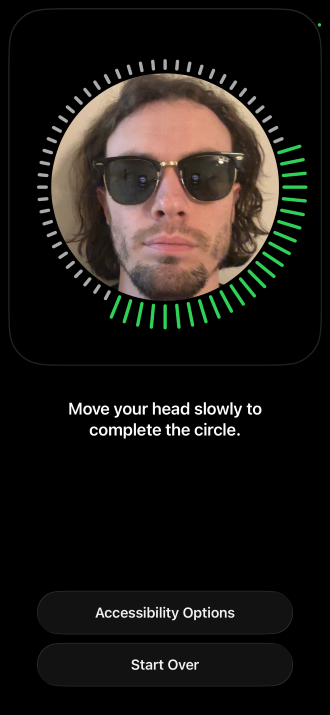
Image: Max McCaskill
There are two easy options to fix your Face ID and sunglasses. The first involves disabling the attention settings in your iPhone's settings, while the second involves creating an additional Face ID profile while wearing your sunglasses.
Fix 1: Disable "Require Attention for Face ID"
This is the fastest fix, but it does sacrifice some of your device security. Disabling the "Require Attention for Face ID" setting means that your phone no longer needs to confirm you're actually looking at the screen to unlock itself. It simply needs to see your face.
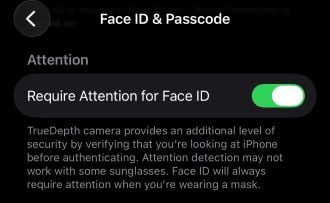
setting on or off as often as you want.
Image: Max McCaskill
To disable Require Attention for Face ID:
- Open Settings.
- Tap Face ID & Passcode.
- Enter your passcode.
- Toggle off Require Attention for Face ID.
Just remember, with this setting off, your iPhone could potentially be unlocked if someone holds it up to your face while you're asleep or not looking at it.
Fix 2: Create an Alternate Appearance with your sunglasses on
If you'd rather not touch your security settings, Face ID will allow you to add a second saved appearance. You can use that slot to train your iPhone on what your face looks like in your sunglasses.
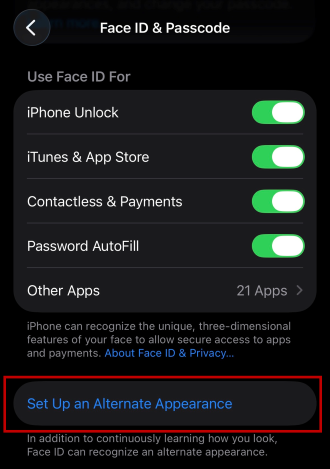
alternate appearance for anything you often wear on
your face, like sunglasses or a medical mask.
Image: Max McCaskill
Here's how to do it:
- Open Settings.
- Tap Face ID & Passcode.
- Enter your passcode.
- Tap Set Up an Alternate Appearance.
- Follow the on-screen instructions while wearing your sunglasses.
You should note this method only works if your lenses don't completely block infrared light. If they're designed to completely cut infrared light or are extremely filtered, Face ID may flag the glasses as an obstruction and refuse to complete the setup process.
What if Face ID is still not working?
If you've completed the fixes above and your Face ID still isn't working, there are some other common problems.
Your current lighting may be interfering with Face ID. The system works in most conditions, but bright sunlight—the reason you're likely wearing sunglasses in the first place—can throw off the sensors if the light is shining directly into the TrueDepth camera. Try moving to a shady area and trying again.
You should also make sure the TrueDepth camera lens at the top of your screen is clean. If you're out at the beach or doing some other outdoor activity, a smear of sunscreen or sweat across the lens will prevent it from working properly. For a full walkthrough of Face ID troubleshooting, check out our Face ID not working guide for a complete list of fixes.
That said, if none of the methods above got your Face ID working again, your sunglasses' filter may simply be too powerful, and you'll need to use your passcode instead. That's not necessarily a bad thing, as a six-digit passcode and Face ID have a similar strength against hacking.
Sunglasses and Face ID: FAQ
Why does Face ID work with my regular glasses but not my sunglasses?
Face ID uses thousands of infrared dots from the TrueDepth camera to scan your face. Regular prescription glasses are typically transparent to infrared light, so the camera sees right through them. Sunglasses are designed to filter light, which can prevent the TrueDepth camera from seeing your eyes, causing Face ID to fail.
Do polarized sunglasses always block Face ID?
No, polarized sunglasses don't always block Face ID. Polarization increases the chances of interference, but the color of the lenses can also play a role.
What lens colors are most likely to block Face ID?
Dark blue, dark green, and mirrored lenses are the most likely to block Face ID. Lighter tints like yellow, pink, and light brown tend to perform better. The deeper the lens tint, the harder it is for infrared sensors to detect your eyes.
Why do some Ray-Bans work with Face ID and others don't?
Ray-Ban makes a wide range of sunglass lenses with different tints and filters. Ray-Ban sunglasses with dark tints and polarized lenses are less likely to work with Face ID than a pair with light lenses and no extra filter. How well your sunglasses work with Face ID depends on how you customized your specific pair.
Can I set up Face ID while wearing my sunglasses?
Yes, if your lenses don't fully block infrared light, you can train Face ID while wearing your sunglasses. However, you should only do so using the Alternate Appearance feature. Your initial Face ID profile should be without glasses. Additionally, remember that if your lenses block the sensors or filter too much light, the setup process may flag them as an obstruction and fail to complete.
Max McCaskill
Sr. Staff Writer

Find a better phone plan
Thousands of cell phone plans unpacked. All the facts. No surprises.


.png?w=280&h=280&usm=20&usmrad=0.8&fit=crop "Best Cell Phone Deals for July 2026: Get the New iPhone 17 for Free")



