Whenever you’re on your phone scrolling through TikTok, playing Wordle, or insomnia-shopping on your Amazon app, you’re accessing the internet just like you would on your computer. But unlike your desktop or laptop, your cell phone has not one but two ways it’s able to connect to the interwebs—via Wi-Fi or via a cellular data connection.
Your phone plan includes a given amount of data that allows you to hop online. Your smartphone also gives you the option to bypass your phone’s data package altogether and connect to the internet via a Wi-Fi signal, just like your laptop does.
So what’s the difference between how Wi-Fi and cellular data operate, and which option is the best for you in a given scenario? Let’s run through the details.
Wi-Fi vs. cellular data
Wi-Fi signal:
- Wired connection
- Accessed via a Wi-Fi router
- Limited range
- Doesn't use data
- Doesn't require a SIM
Cellular data:
- Wireless connection
- Accessed via cell towers
- Wide range
- Uses data
- Requires a SIM
In essence, both Wi-Fi and cellular data are a means to connect you to the internet. Both technologies use radio signals to exchange information and connect to a network. How they access said network, however, differs. Wi-Fi actually starts as a wired connection, such as cable, fiber, or dial-up, supplied by an internet service provider (ISP). This connection wires to your home and then can be distributed as a wireless signal throughout your space via a router—that signal is Wi-Fi, or "wireless fidelity." Thanks to this direct, wired connection, radio frequencies can travel much faster than they would through the air via a cell tower, making Wi-Fi often faster than mobile internet. Conversely, a cell signal is wireless in every sense of the word. It uses radio towers to distribute signals that your device then picks up wirelessly.
So long as you are near a Wi-Fi router and connected to its network, you can access the internet on your various devices (laptops, smartphones, Kindles, etc.) without using data. The strength of the Wi-Fi signal depends on several factors, including how close you are to the router, where it’s located, and what type of router it is. Hint: not all routers are created equal, so check out our picks for the best long-range Wi-Fi routers if you need guidance on picking a good one.
While Wi-Fi can be found in many public places, including office buildings, coffee shops, and public transportation, most of us also pay for a phone plan that allows us to connect to the internet almost anywhere. Other devices with SIM capability, like smartphones and certain tablets and smartwatches, can use cellular data to connect via a data-only plan, which doesn’t include talk or text allowances.
Cellular connections tend to be stronger the closer to a cell tower you are; most of the U.S. has good network coverage via the Big Three networks (Verizon, AT&T, T-Mobile), save for certain rural areas and the occasional dead zones. You can check coverage in your specific area using our cell phone coverage guide.How to know if you’re on Wi-Fi or cellular data
You will know you are connected to Wi-Fi when you see the rainbow-like signal bars at the top of your screen.
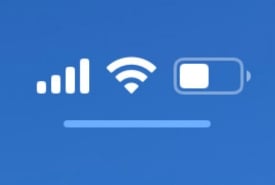
You will know you are connected to cellular data when you see the vertical signal bars at the top of your screen. The number of bars represents the signal strength—the more you have, the stronger your connection.
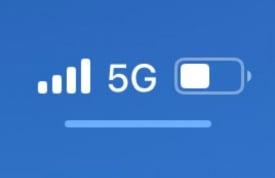
You’ll also see the type of network you’re connected to, 4G LTE or 5G. These network types are distinguished by the kinds of radio bands each uses to relay a signal from the tower to your phone. 4G LTE is still the dominant network type throughout the U.S., but 5G is quickly becoming well-established and delivers much faster speeds in areas where it’s well-built. For more, check out our guide to the different cell phone networks and frequencies; you can compare 5G coverage maps between the three major carriers.
When to use Wi-Fi over cellular data
As a rule of thumb, use Wi-Fi at home if you have a home network and that network is strong. This way, you can conserve your data for when you’re out and about. This is especially helpful if you have a phone plan where you only get a certain amount of high-speed data per month and even more helpful if your data is a hard limit—meaning you’d have to pony up extra cash for more if you run out before your billing cycle ends. Plus, if you know you have regular and reliable access to Wi-Fi, you can opt for a much cheaper phone plan to save on your overall monthly costs.
Lastly, Wi-Fi is typically faster than cellular data and doesn’t drain your cell phone battery as quickly, making it great for data-heavy activities like streaming movies, music, and games.
How to stay safe on public Wi-Fi
Using public Wi-Fi is a great idea so long as you trust the network However, many public Wi-Fi signals aren’t protected or encrypted, leaving you vulnerable to bad actors stealing your personal data. If you can’t hop on an encrypted public network, we recommend sticking to cellular; if you need to tether other devices, using your phone plan’s mobile hotspot data is a safe bet.
Here are a few additional precautions to take before connecting to the internet on a public network:
- Double-check that you are on the right network. Scammers can create similar-looking Wi-Fi networks to access your personal information.
- Check if a site’s connection is secure.
- On Chrome, check the security status symbol in the left-hand corner of your search bar. If there is an info or exclamation point icon, the site might not be secure
- Ensure your device does not automatically connect to Wi-Fi.
- On iPhones, go to Settings > Wi-Fi. Scroll to the bottom and make sure “Ask to Join Networks” is set to “Ask.”
- On Androids, go to Settings > Network and Internet > Wi-Fi > Wi-Fi Preferences and make sure Connect to public networks is disabled.
How and when to use your phone's mobile hotspot
Most modern phones can function as portable hotspots, meaning they can create their own Wi-Fi network using cellular data. We advise using your mobile hotspot over a public Wi-Fi network when sharing sensitive information online, such as bank logins or credit card information.
Not sure how to turn on your hotspot? We’ve got a guide for that.
When to use cellular data over Wi-Fi
Cellular data is a must if you want access to the internet on the go, such as while listening to podcasts while driving, accessing recipes while grocery shopping, or staying in contact while spending time outdoors. It also comes in handy if your home internet is acting up—for example, when my home internet provider had a neighborhood-wide outage recently—with zero regard for the slate of Zoom meetings on my calendar, I might add—having my cellular data mobile hotspot as a backup was critical to keeping me connected and on track.
Cellular data requires a phone plan with a data allowance, which can range from 500MB to unlimited monthly data. If you opt for a lower data plan, we recommend using it for data-moderate activities like checking social media, sending emails, or briefly browsing the web. You can also use cellular data to power your hotspot if you need access to secure Wi-Fi—just note that on low-data plans, your hotspot typically draws from your overall monthly data allowances, so use it sparingly.
An unlimited data plan may be a better choice for data-heavy activities like streaming, gaming, or working from your phone. But before you sign up for a top-tier, expensive unlimited plan from one of the major carriers like Verizon, AT&T, and T-Mobile, note that there have been significant improvements in plans from smaller carriers called MVNOs, or mobile virtual network operators. These carriers offer service using the same towers as the Big Three but don’t have to pay the costs of upkeep.
For you, this means unlimited plans as cheap as $25-30 per month for the exact same coverage. Many carriers even offer the same perks as the big guys, including unlimited premium data, hotspot allowances, and more. Two standouts are Visible and Mint, which offer unlimited data on Verizon’s and T-Mobile’s networks.
|
Mint Mobile

Unlimited Data Plan
$15.00/mo
$45 for 3 months of service
|
|
Visible

$25 Visible Plan
$25.00/mo
Taxes & Fees included
|
How much cellular data do you really need?
Most of us need at least some cellular data to get by, but if you have reliable access to Wi-Fi, chances are you can do without an unlimited plan. The average person uses less than 20GB of data a month, and if you use Wi-Fi often for work and streaming, you might be using even less.
With our data usage guide, we can help you figure out just how much data to spring for.How to monitor your cellular data usage
Not all carriers treat their data plans the same. Some will slow your speeds after you reach your monthly data allotment, while others will cut you off completely, requiring you to pay for additional gigabytes if you need them. Either way, it's good to know when you’re nearing your limit.
To check your data usage on an iPhone:
- Go to Settings > Cellular and scroll down to Cellular Data. You’ll be able to view your current usage and see which apps are using cellular data to run.
- Toggle these off if you don’t want them using your cellular data.
To monitor your data usage on an Android (instructions may vary based on model):
- Go to Settings > Network and internet > internet.
- Find your carrier and tap Settings to view your current data usage.
You can also use your carrier’s dedicated mobile app or check your account on their website. Jump over to our data monitoring guide for more and learn which apps are eating up all of your data.
Additional tips for using Wi-Fi and cellular data
There are some additional things you can do to maximize your data usage and/ or increase your internet speeds.
- Depending on your phone and carrier, you can set usage alerts to ensure you don’t go over your data allowance. Check your account settings in your carrier’s app to see what your options are.
- Check to see if your phone is using “Wi-Fi assist”—this automatically triggers your cellular data if the Wi-Fi you’re on has a weak signal. You can typically find this in your phone’s settings under its respective “Cellular” menu. If it’s on, and you’re concerned about your data usage, turn it off. Turn your cellular data off completely or keep your phone in Airplane Mode to prevent data usage until you reach a Wi-Fi signal.
- For faster mobile internet speeds, make sure your phone is set to allow a 5G signal. This is found in your Network settings—you can toggle 5G on or off.
- For faster Wi-Fi speeds, check which frequency band your router is using to deliver your Wi-Fi signal and switch to a higher frequency—typically, this means selecting the 5 GHz option.
Alissa Bird
Staff Writer

Find a better internet plan
Enter your address to find the best internet providers available in your area.

Related Articles


Related Topics
InternetPopular Topics
Internet Spectrum Internet Xfinity Research and Reports AT&T T-Mobile News Verizon App Explainers MINTernetInternet Providers by State
- Internet in Alabama
- Internet in Alaska
- Internet in Arizona
- Internet in Arkansas
- Internet in California
- Internet in Colorado
- Internet in Connecticut
- Internet in Delaware
- Internet in District of Columbia
- Internet in Florida
- Internet in Georgia
- Internet in Hawaii
- Internet in Idaho
- Internet in Illinois
- Internet in Indiana
- Internet in Iowa
- Internet in Kansas
- Internet in Kentucky
- Internet in Louisiana
- Internet in Maine
- Internet in Maryland
- Internet in Massachusetts
- Internet in Michigan
- Internet in Minnesota
- Internet in Mississippi
- Internet in Missouri
- Internet in Montana
- Internet in Nebraska
- Internet in Nevada
- Internet in New Hampshire
- Internet in New Jersey
- Internet in New Mexico
- Internet in New York
- Internet in North Carolina
- Internet in North Dakota
- Internet in Ohio
- Internet in Oklahoma
- Internet in Oregon
- Internet in Pennsylvania
- Internet in Rhode Island
- Internet in South Carolina
- Internet in South Dakota
- Internet in Tennessee
- Internet in Texas
- Internet in Utah
- Internet in Vermont
- Internet in Virginia
- Internet in Washington
- Internet in West Virginia
- Internet in Wisconsin
- Internet in Wyoming