
Your iPhone can show you every Wi-Fi password it's ever saved, including old networks you connected to years ago. It's an automatic feature that you may not even realize exists.
After Apple added direct password visibility in iOS 16, iPhones now keep a record of every Wi-Fi network you've ever connected to and its password. You can easily access your previous Wi-Fi passwords in the Passwords app or in the Wi-Fi settings of your iPhone.
It's an incredibly helpful feature if someone asks for a Wi-Fi password you've long since forgotten, or if you're setting up a new piece of tech and need your old Wi-Fi credentials.
Here's exactly where to find all your old Wi-Fi passwords and how to easily share them.
How to find a saved Wi-Fi password on iPhone
You can find your saved iPhone Wi-Fi passwords in your settings and in the Passwords app. Make sure you're running the latest version of iOS to have access to all the newest features.
Find your Wi-Fi password in the Settings app
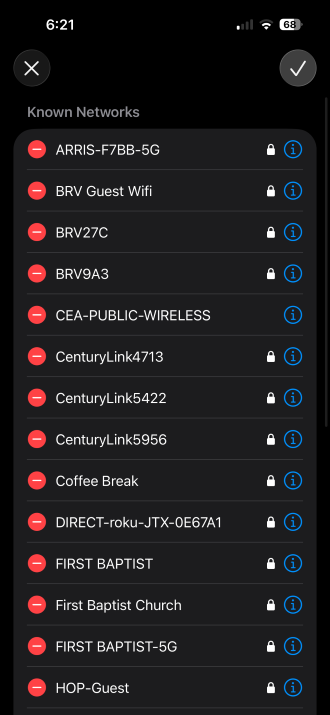
Image: Max McCaskill
- Open Settings
- Tap Wi-Fi
- Press the Edit button
- Tap the Info symbol on your Wi-Fi network of choice.
- Tap the Password (currently written in masked characters)
- Authenticate with Face ID, Touch ID, or your passcode
- The password appears in plain text
This is the most useful method when looking for the password of the network you're currently connected to.
Find your saved Wi-Fi passwords in the Passwords app
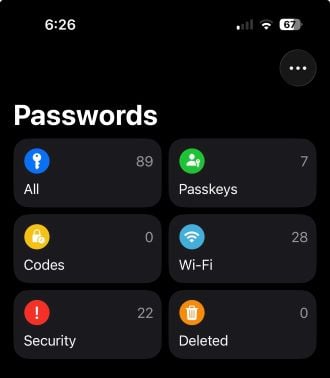
Image: Max McCaskill
The Passwords app is a dedicated home for all your iPhone's saved credentials, including Wi-Fi passwords.
- Open the Passwords app (it's a native Apple app; search for it if you haven't used it)
- Tap the Wi-Fi category in the main menu
- Tap your preferred network
- Tap the Password to reveal it in plain text
The Passwords app is most useful if you're looking for a network you connected to in the past. Its list is easier to browse than the Settings app.
What is the Passwords app on iPhone?
The Passwords app is Apple's standalone credential manager and was originally introduced as a security feature of iOS 18. It consolidates everything that used to live scattered across Settings—website logins, passkeys, verification codes, and Wi-Fi passwords—into a single app.
It's a native app that's built into iOS, making it incredibly secure. It can also share passwords across all your other Apple products—like Macs and iPads—through the iCloud Keychain. That cross-device syncing is one piece of what iCloud does. If you're curious about the rest, our guide to iCloud and how it works breaks it all down. Finally, it also monitors your passwords for potential data breaches, then alerts you so you can change them.
How to share a saved Wi-Fi password from your iPhone
Once you've found your password, Apple makes it easy to share if someone nearby needs it too.
To share your Wi-Fi password with other iPhones:
- Make sure both iPhones are unlocked and Bluetooth is on
- Have your contact saved in the other person's phone (and vice versa)
- When the other person tries to join the network, a prompt will appear on your phone asking if you want to share the password
- Tap Share Password
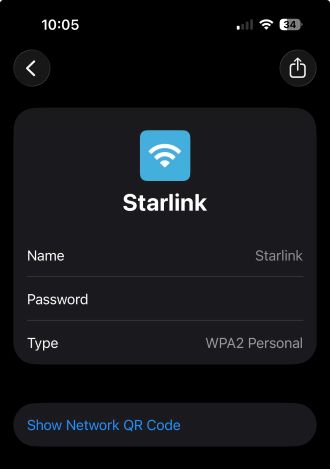
Image: Max McCaskill
To share via QR code (works with Android too):
- Open the Passwords app
- Tap the Wi-Fi category
- Select the network you want to share
- Tap Show Network QR Code
- Have the other person scan it with their camera app
If you're struggling with either method, here's our full guide to sharing your Wi-Fi password from your iPhone, which will walk you through every step.
What if your Wi-Fi password has changed?
Your iPhone stores the password that worked when you last connected. If someone changed the router password since then, the saved password is outdated, and your phone will be unable to reconnect. Once you enter the new password, your iPhone will automatically update the Wi-Fi password entry in your settings and the Password app.
If you've recently changed your Wi-Fi password and forgotten it, we can also help you change your Wi-Fi password through the router itself.
It's also a good idea to prune your Wi-Fi list regularly so that it doesn't become cluttered with connections you'll never use again. Wi-Fi passwords from trips abroad, hotels, previous workplaces, and other locations you don't normally visit can all be deleted to free up space.
iPhone Wi-Fi passwords: FAQ
How do I find my Wi-Fi password on iPhone?
To find your current Wi-Fi's password, go to the Settings app, then Wi-Fi, then tap the Info symbol on your current connection. You'll then see the password field as a series of dots. Press the password, authenticate with Face ID, Touch ID, or your passcode, and it will become visible.
Can iPhone show passwords for old Wi-Fi networks?
Yes, your iPhone stores password credentials for every network you've used, not just the one you're currently connected to. Open the Passwords app and tap the Wi-Fi category to browse the full list. If the iCloud Keychain is enabled, you'll also see networks you connected to on other Apple devices.
Does iPhone store Wi-Fi passwords from other Apple devices?
Yes, since the release of the Passwords app with iOS 18, your iPhone can store Wi-Fi passwords from other Apple devices in the app if the iCloud Keychain is enabled. All your devices that are signed into the same Apple ID will share Wi-Fi passwords, account passwords, and any saved passkeys.
How do I delete a saved Wi-Fi network on iPhone?
To delete a saved Wi-Fi network on your iPhone, go to the Settings app and then Wi-Fi. Tap the Edit button in the upper-right corner for a full list of your previously saved Wi-Fi networks. Press the Info symbol next to your selected network, then tap Forget This Network. Your iPhone will remove the network from your history, and the password will be deleted.
Max McCaskill
Sr. Staff Writer

Find a better phone plan
Thousands of cell phone plans unpacked. All the facts. No surprises.


.png?w=280&h=280&usm=20&usmrad=0.8&fit=crop "Best Cell Phone Deals for July 2026: Get the New iPhone 17 for Free")



