
Apple’s iOS 18 update brings a major refresh to the Messages app, making everyday conversations more dynamic, customizable, and secure. Whether you’re scheduling messages to send later, customizing the appearance of shared links, or taking advantage of new tapback options, iOS 18 has something for everyone.
This update also bridges the gap between iPhone and Android users with RCS support, improving communication with those "green bubble" friends. Let’s dive into all the new features that make messaging on iOS 18 more capable than ever before.
RCS support
For years, the gap between iPhone and Android messaging experiences has been a common source of frustration. iPhone users have enjoyed the smooth, feature-rich world of iMessage with its blue bubbles, read receipts, high-quality media sharing, and seamless group chats. But when an Android user entered the chat, everything changed. Conversations suddenly switched to the outdated SMS/MMS protocol, causing a number of problems.
With RCS support in iOS 18, these headaches are finally coming to an end. By adopting the Rich Communication Services protocol, iPhone users can now enjoy many iMessage-like features even when texting with Android users. RCS allows for higher-quality media sharing, read receipts, typing indicators, and more reliable group chats, bridging the gap between the two platforms.
While the experience still won’t be identical to iMessage (the green bubbles aren't going away), RCS makes messaging across devices much more consistent and user-friendly. If you've ever had a conversation ruined by mismatched platforms, iOS 18’s RCS support should make those frustrations a thing of the past.
More tapback options
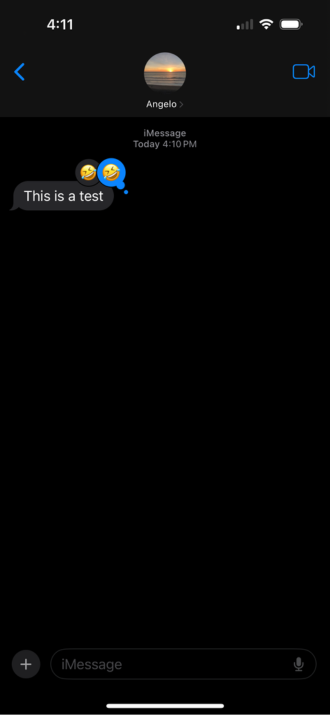
Tapbacks have always been a convenient way to quickly respond to messages without typing out a full response. But, until now, users have been limited to a standard set of reactions—like thumbs up, heart, and exclamation points. With iOS 18, Apple has transformed tapbacks into a more expressive tool by allowing any emoji to be used as a reaction.
Credit: Angelo Ilumba
Want to react with a laughing emoji? A crying face? Maybe even the often-used facepalm? Now, you can. This new level of customization means you can pick the perfect emoji to match your mood or response.
In addition to emoji, stickers can now also be used as tapback reactions. This makes interactions even more fun and engaging, allowing for endless creativity when reacting to a friend’s message. While the classic tapbacks haven’t gone away, they’ve received a makeover. They’re now in full color, blending more seamlessly with the new emoji and sticker options.
Schedule messages for later
A long-requested feature finally arrives in iOS 18: message scheduling. Whether you’re thinking of a birthday wish ahead of time or want to remind someone of an event, you can now schedule your messages to send later.

Credit: Angelo Iluimba
Simply compose your message, tap the “+” button, and choose the new “Send Later” option. You’ll be able to pick a specific date and time for the message to be sent, making it easier than ever to stay organized without having to rely on reminders or external apps.
Rich text formatting

Credit: Angelo Ilumba
One of the most noticeable improvements in iOS 18’s Messages app is the addition of rich text formatting options. For the first time, users can bold, italicize, underline, and even strikethrough text, allowing for more emphasis and clarity in your conversations. Need to stress a point or differentiate between topics in a group chat? Now you can do so with style.
But Apple didn’t stop there. You can also apply one of eight new visual effects to individual characters in your messages. These effects include:
- Big
- Small
- Shake
- Nod
- Explode
- Ripple
- Bloom
- Jitter
While these effects may feel a bit whimsical, they open up new possibilities for adding flair to conversations and making your messages stand out.
Lock your Messages app
One of the key privacy upgrades in iOS 18, though not exclusive to the Messages app, is the ability to lock your apps—including Messages—with Face ID, Touch ID, or your passcode. This means you can keep your conversations secure, ensuring no one can access them without proper authentication.
Even when you're sharing something through Messages from another app (like Photos or Notes), this protection kicks in. The app will require you to authenticate before any messages can be sent, adding an extra layer of privacy.
How to Lock the Messages App:
- Find the Messages app on your Home Screen, App Library, or using Spotlight Search.
- Long press the app icon to open the quick actions menu.
- Select “Require Face ID,” “Require Touch ID,” or “Require Passcode.”
- Confirm your choice by authenticating with Face ID, Touch ID, or your passcode.
Once set, the Messages app will be locked until the correct authentication is provided, ensuring that your conversations remain private. This simple but powerful feature offers peace of mind, knowing that no one but you can access your Messages.
Customize link previews
With iOS 18, Apple has made sharing links in the Messages app a lot cleaner and more customizable. In the past, sending a link resulted in an automatic rich preview, whether you wanted one or not, leading to occasional clutter in your messages. Now, iOS 18 gives you full control over how your shared links appear.
Credit: Angelo Ilumba
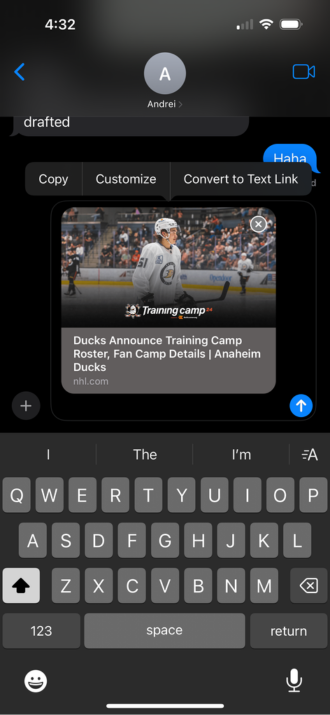
When you paste a URL into the message field, the app will automatically generate a preview so you can see exactly how it will look before hitting send. But here’s the great part: If the preview isn’t to your liking, you can now customize it. By tapping the preview, you can select “Customize” and choose different options, like a preview with a different image or no image at all.
Prefer just the plain link? You can convert the rich preview to a simple text URL by selecting “Convert to Text Link.” And if you change your mind, the “Show Link Preview” option lets you bring back the rich preview at any time.
This new feature not only helps tidy up your messages but also gives you more control over how links are presented—whether you’re sharing an article, a video, or any other type of content.
Angelo Ilumba
Senior Writer

Find a better phone plan
Thousands of cell phone plans unpacked. All the facts. No surprises.


.png?w=280&h=280&usm=20&usmrad=0.8&fit=crop "Best Cell Phone Deals for July 2026: Get the New iPhone 17 for Free")



