

Taking a screenshot on an Android device is an easy way to save what’s on your phone screen. Whether you want to save an image from Instagram, snap a pic of an app while writing a tutorial, or create your own phone wallpaper, there are plenty of reasons to regularly screen capture. You can also edit the screenshot before sharing it.
However, the process for taking a screenshot varies from device to device. Thankfully, we’ve got you covered. Keep reading to learn how to take a screenshot on Android.
How to take a screenshot on Android

On many stock Android phones, taking screenshots is pretty simple. Pull up the app, website, or screen you want to save and press the power and volume down buttons simultaneously. This button-mashing combo should snap a quick screenshot.
Alternatively, if the power and volume rocker method didn’t work, try long pressing the power button for a few seconds, then tap Screenshot.
Once you’ve successfully captured an image, a preview should appear. Fire up Google Photos or your preferred app to view and edit the resulting snapshot. You can transfer screenshots to a Windows PC, macOS device, or Linux computer for comprehensive image editing by uploading to Google Drive or Photos storage.
Scrolling screenshots on Android
Most Android 12 or newer devices let you take scrolling screenshots to capture more real estate than what appears on your phone’s default display dimensions. For instance, if you want to save an image of an article (like this one!) while browsing in Google Chrome, you can utilize a scrolling screenshot:

- Hit the power button and volume down key simultaneously.
- Tap the Capture more button at the bottom.

Long screenshot is... long - Select the additional content you want to save.
Device-specific screenshots on Android
Although the power button and volume rocker strategies work on many handsets, specific Android screenshot tools exist on phones from manufacturers such as:
Here’s how to capture your display on these brands.
Google Pixel
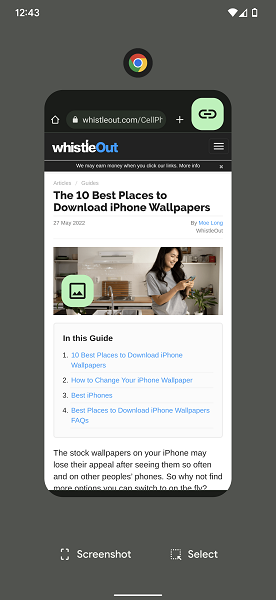
With the Google Pixel 7 and other Pixel devices, you can capture screenshots with gestures or Google Assistant. To use a gesture:
- Perform the swipe up and hold gesture to bring up the Recent apps screen.
- Select an app you want to capture.
- Hit Screenshot.
To use Google Assistant:
You can also save images using Google Assistant, but you’ll need to enable its screenshot feature. Head to Settings > Apps > Default apps > Digital assistant app > Use screenshot. Yep, it’s difficult to find.
- Awaken Google Assistant by bellowing (or gently stating), “Hey Google.”
- Say “Take screenshot” once you navigate to what you want to capture.
If you don't want to use Google Assistant, you can always change your default assistant and other apps to whichever one you want to use.
Samsung Android screenshots

Samsung Galaxy device owners can use the volume down and power button key combo to take screenshots. Palm swiping also works on several Samsung devices, including the Galaxy S23. Here’s how:
- Enable gestures: Settings > Advanced features > Motions and gestures > Palm swipe to capture.
- Swipe your palm across the display to take a screenshot.
Motorola screen capture
Many Motorola phones feature gesture controls for screenshots:
- Fire up the Moto Actions app and hit Three-finger screenshot.
- Place three fingers across the screen and wait for a screenshot to save.
OnePlus gesture screenshots
For OnePlus users, there’s an easy gesture for screenshotting:
- Head to Settings > Buttons & gestures > Quick gestures.
- Enable three-finger screenshots.
- Swipe down with three fingers to quickly take a screenshot.
Xiaomi screenshot shortcuts
With Xiaomi phones, you can save images with a three-finger swipe:
- Navigate to Settings > Additional settings > Button shortcuts > Take a screenshot.
- Choose a long press hotkey such as the back or home button.
- Perform the screenshot shortcut.
Third-party Android apps for taking screenshots
While we recommend using your phone’s built-in screenshot capabilities, you can find plenty of third-party apps in the Google Play Store to handle this task. Our favorite screenshot apps include Super Screenshot, Screen Recorder - XRecorder, and Screenshot X. Want to remove a screenshot application? Learn how to delete apps on an Android phone. Lose your phone? Here's how to locate it with Find My Android.
Best Android phones
Our favorite Android smartphones include the Google Pixel 7, Samsung Galaxy S23, and Motorola Moto G Power. In general, we recommend many Samsung phones and Google Pixel devices due to many of their models offering high-end features and hardware. Looking for more ways to make use of your Android phone? Learn how to use FaceTime on Android to chat with iOS friends.
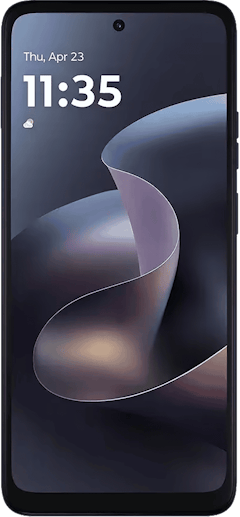
Moto G 5G (2026) 128GB
- 6.7 inch display
- Rear Cameras: 50MP, 2MP
- Front Camera: 32MP
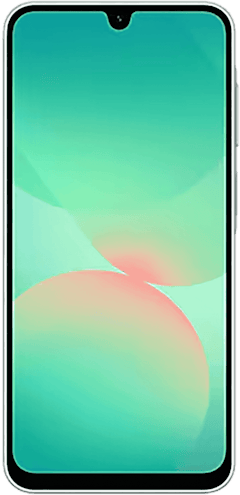
Galaxy A26 5G
- 6.7 inch display
- Rear Cameras: 50MP, 8MP, 2MP
- Front Camera: 13MP
Galaxy A27 5G 128GB
- 6.7 inch display
- Rear Cameras: 50MP, 5MP, 2MP
- Front Camera: 12MP
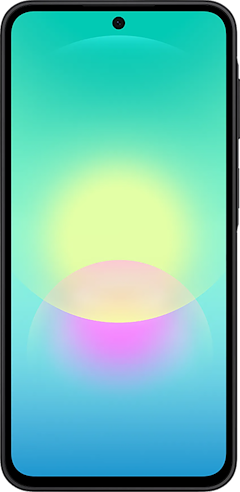
Galaxy A37 5G 128GB
- 6.7 inch display
- Rear Cameras: 50MP, 8MP, 5MP
- Front Camera: 12MP
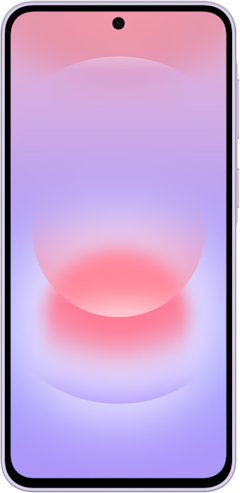
Pixel 10a 128GB
- 6.3 inch display
- Rear Cameras: 48MP, 13MP
- Front Camera: 13MP

How to Take a Screenshot on Android FAQs
How can I take a screenshot on Android?
The easiest way to take a screenshot on Android is by quickly pressing the power and volume down buttons simultaneously.
How can I take a screenshot on my Samsung Android?
In addition to hitting the volume down and power buttons simultaneously, you can take a screenshot on your Samsung Android phone with a gesture. First, head to Settings > Advanced features > Motions and gestures and enable Palm swipe to capture. After that, simply swipe the edge of your palm on the display to take a screenshot.
How do I take a screenshot without the power button?
You can take a hands-free screenshot without the power button by activating Google Assistant with the command “Hey Google.” Then say, “Take screenshot.” Some manufacturers like Google, Xiaomi, OnePlus, and Samsung also include gestures or shortcuts that avoid using the power button.
How do I take a scrolling screenshot on Android?
To take a long screenshot on Android 12 and up devices, take a screenshot as normal and tap Capture more to the right of the preview.
Moe Long
Senior Writer

Find a better phone plan
Thousands of cell phone plans unpacked. All the facts. No surprises.


.png?w=280&h=280&usm=20&usmrad=0.8&fit=crop "Best Cell Phone Deals for July 2026: Get the New iPhone 17 for Free")



