

Stay connected without falling into social media doomscrolling. With Locket Widget, you instantly share a snapshot of your day with your closest circle.
Locket Widget strips away all the noise from social media and gets back to what actually matters: Sharing small moments directly with the people you care about most. It's the kind of thoughtful tool we feature in our best new apps every month.
Locket Widget keeps things simple in the best ways:
Locket Widget displays your photos
When you snap a photo in Locket, it instantly appears on your loved ones' lock screen or home screen widget. That means there aren't any feeds to scroll through or any distracting ads either. It's just your photo popping up on their phone right when they need a reminder that you're thinking of them. It's the digital equivalent of leaving a note on their pillow.
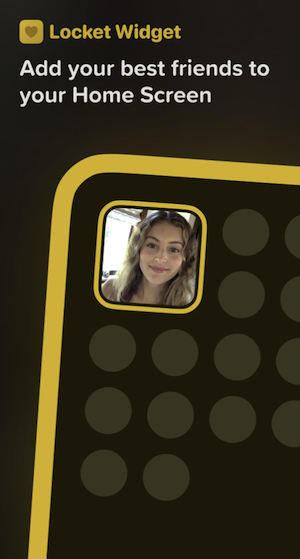
Image: Google Play Store
Snap spontaneous moments with Locket Widget
What makes Locket special is the spontaneity it encourages. Because it only uses live photos (or pics you take in the app itself), you share the unfiltered real you. Your partner sees your coffee shop selfie, the funny sign you passed on your walk, the sunset from your window—all the tiny slices of life that don't warrant a formal photo share but that help them feel present in your day.
The free version enforces this spontaneity by only allowing live photos—you can't select images from your gallery. It prevents overthinking and over-curating. You can't scroll through 15 photos to find the most flattering angle. You just snap and send.
Sharing photos all day requires unlimited data
Apps like Locket Widget that instantly share photos throughout the day can quietly devour your data allowance. If you're tired of rationing your spontaneous photo shares or hitting data caps, an unlimited plan removes that stress entirely.
Check out these affordable unlimited data plans perfect for photo-sharing couples:
|
#1
|
XFINITY Mobile

Mobile Select Plan
$0.00/mo
(for the first year of service) <br>Regular rate of $30/mo. thereafter
|
|
#2
|
Lyca Mobile

Unlimited Plus Plan
$12.50/mo
Pay $12.50/month for the first 9 months<br>Regular rate is $49/month
|
|
#3
|
Cricket

3-Month Unlimited Plan
$15.00/mo
$45 advance payment for 3 months (equals to $15/month)<br>regular rate for 3 months is $120 (equals to $40/month)
+ $9.99 Upfront
|
Quick setup, instant connection
Setting up Locket only takes a few minutes. Download the app and add the widget to your home screen, connect with your partner, and you're done. The widget itself is customizable so you can choose the size, position, and how photos are displayed.
I keep mine on my main home screen so every time I unlock my phone, there's a chance I'll see a new photo from my boyfriend. It's become one of my favorite little surprises in the daily phone-checking routine.
Locket widget limitations and missing features
The app does have limitations in the free version. You can only send a certain number of photos per day. The paid version removes this limit and adds the ability to select photos from your gallery, giving you more flexibility. However, the daily limit on the free version isn't unreasonably low. It's enough for meaningful use without feeling like you're being constantly upsold.
Where Locket could improve is in photo management. Once a photo appears on the widget, there's not much you can do with it besides react with an emoji or save it manually to your phone. The app doesn't create an organized archive of all the photos you've shared, which means special moments can get lost if you don't save them externally.
Download Locket Widget now
For long-distance couples who want to feel more present in each other's daily lives without the performance pressure of social media, Locket Widget is super fun. It transforms your home screen into an intimate space where your partner can surprise you throughout the day, keeping you connected in a way that feels genuine rather than forced.
Locket Widget: FAQs
Why can't I select photos from my gallery in the free version?
This is actually by design. Locket's free version encourages spontaneity by only allowing live photos taken in the moment. It prevents over-curating and keeps shared moments authentic.
How do I add the Locket widget to my home screen?
To add the Locket widget on iPhone, follow these steps: Long-press your home screen, tap the "+" icon in the top corner, search for "Locket," select the widget size, and tap "Add Widget."
For Android, follow these steps: Long-press your home screen, select "Widgets," find Locket in the list, and drag it to your desired location. You can customize the size and position after placing it.
Can I connect with more than one person on Locket?
Yes! While Locket is most popular with romantic couples, you can add multiple connections including close friends or family members.
How WhistleOut reviews apps
Our mobile experts scour the app stores, looking for the best new apps for Android and iPhone. Before recommending an app, we use the app for at least one full workday, testing its basic functionality and evaluating whether or not it delivers on its promises.
- Easy to use
Great apps simplify your phone. We selected the tools that don't require a complicated instructional manual. - Affordability
The internet is filled with expensive price tags, but we're not buying what they're selling. We leaned into inexpensive, quality apps. Extra points if they're free! - Hands-on testing
We played around with these before recommending them, ensuring they're worth your download.
From there, we weigh the app's pros and cons and then determine whether or not it's a worthwhile download for the wider population of cell phone users.
Jessica Santero
Staff Writer

Find a better phone plan
Thousands of cell phone plans unpacked. All the facts. No surprises.


.png?w=280&h=280&usm=20&usmrad=0.8&fit=crop "Cheap Unlimited Data Plans from $25/Month")


.png?w=280&h=280&usm=20&usmrad=0.8&fit=crop "Best Cell Phone Deals for June 2026: Get the New iPhone 17 for Free")

